
Getting started with iBudgetAll: take back control of your money
This guide takes you from scratch to a budget that's up and running, in six steps. It follows the “Per account” mode, the one recommended to start with. Whenever “Global budget” works differently, a note tells you.
Plan for one evening of preparation, then about fifteen minutes in the app.
The envelope principle, in brief
Instead of staring at your overall balance and hoping it works out, you give each amount a purpose. Your money is split into envelopes: groceries, going out, vacations, savings.
You decide what your money is for before you spend it, not after the fact. An empty envelope is a clear signal: that part of your budget is used up for the period, and you know where you stand.
It's the modern version of the old paper envelope method, where you slipped cash into labeled envelopes. The app does the same job, only simpler and more accurate.
The loop to remember
Everything else in this guide serves a loop that fits in one sentence: money arrives in your account, you assign it to your envelopes, then every variable expense, whether you enter it by hand or validate it from your bank, comes out of an envelope.
Two actions keep it running: assigning the money you receive, and validating the transactions that arrive from your bank. Without the first, your envelopes stay empty. Without the second, an imported transaction isn't counted anywhere.
Here's where each thing you pay for goes:
| What you pay for | Examples | Where to put it |
|---|---|---|
| A fixed expense | Rent, utilities, health insurance, loan | A recurring rule in “My Finances”. The app records it automatically on its date. Turn on “Debit an envelope” if you want it paid from an envelope. |
| A variable expense | Groceries, fuel, entertainment | An envelope with a goal per period. Never a recurring rule. |
| Savings | Vacation, unexpected costs | A “Savings” envelope with its goal, or automatic savings. |
In “Global budget” mode, the form for a fixed expense also asks for an envelope, which replaces the category.
One evening of preparation
Before you open the app, take an evening to gather everything that recurs. It's the most useful part of the whole process: once it's done, the rest goes quickly.
Download our preparation file. It opens in Excel, Numbers, LibreOffice or Google Sheets. Two downloads, side by side:
The content is the same: only the format changes.
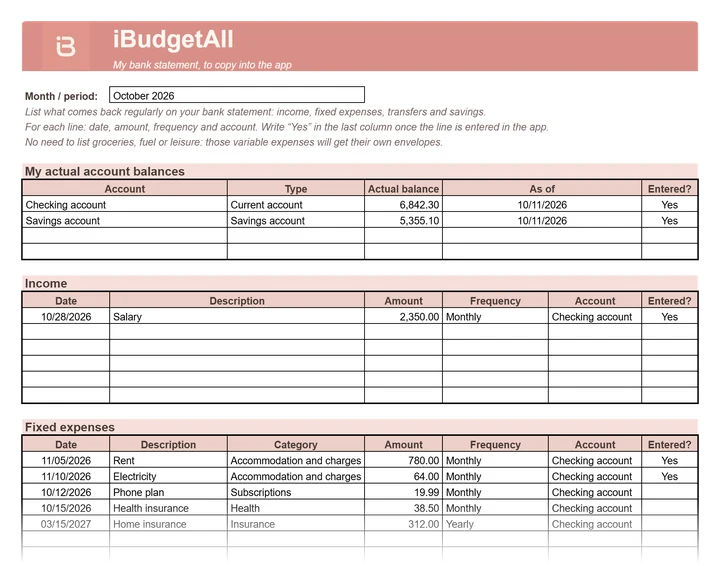
Write down everything that recurs: your income, your fixed expenses, your transfers and your savings. Each has its own table. For each line, note:
- the date;
- the amount;
- the frequency;
- the account concerned.
The last column lets you check off each line once you've entered it in the app.
In the first table, also note the real balance of each of your accounts, as your bank shows it today. You'll need it as soon as you start the setup wizard.
A few pointers so you don't forget anything:
- Start from your latest statement: that's enough to get going. A glance at the previous months reveals what doesn't come up every month, like an annual insurance premium or a tax bill.
- Note quarterly or annual bills with their frequency: you'll be able to smooth them out (step 4).
- Don't list your groceries, fuel or entertainment. Those are variable expenses: they'll get their own envelopes (step 5).
Choose your starting day. If you have the choice, start on payday or at the beginning of the month: the money to assign is there, and all of the month's due dates are still ahead. Otherwise, start whenever you like: nothing stops you.
The setup wizard creates your account
The first time you open the app, a few introduction pages appear (“Skip”, at the top right, to go faster), then “Create my account” or “I already have an account”.
The wizard then asks you a few questions, one per page, with a “Next” button. Nothing is final: you can change most answers later, in “Settings”.
You choose:
- your language and currency, then your first name;
- how often you get paid (“Monthly”, “Weekly”, “Every 2 weeks” or “Irregular”) and, if you wish, the date of your “Next payday”;
- your bank accounts, on the “Your accounts” page: tap “Add an account”, then enter the “Account name”, its “Type” (“Current account”, “Savings account”, “Credit card”, “Cash” or “Investment”), its “Currency”, its “Initial balance”, optionally its “Authorized overdraft”, and a “Color”. Tap “Create the account”;
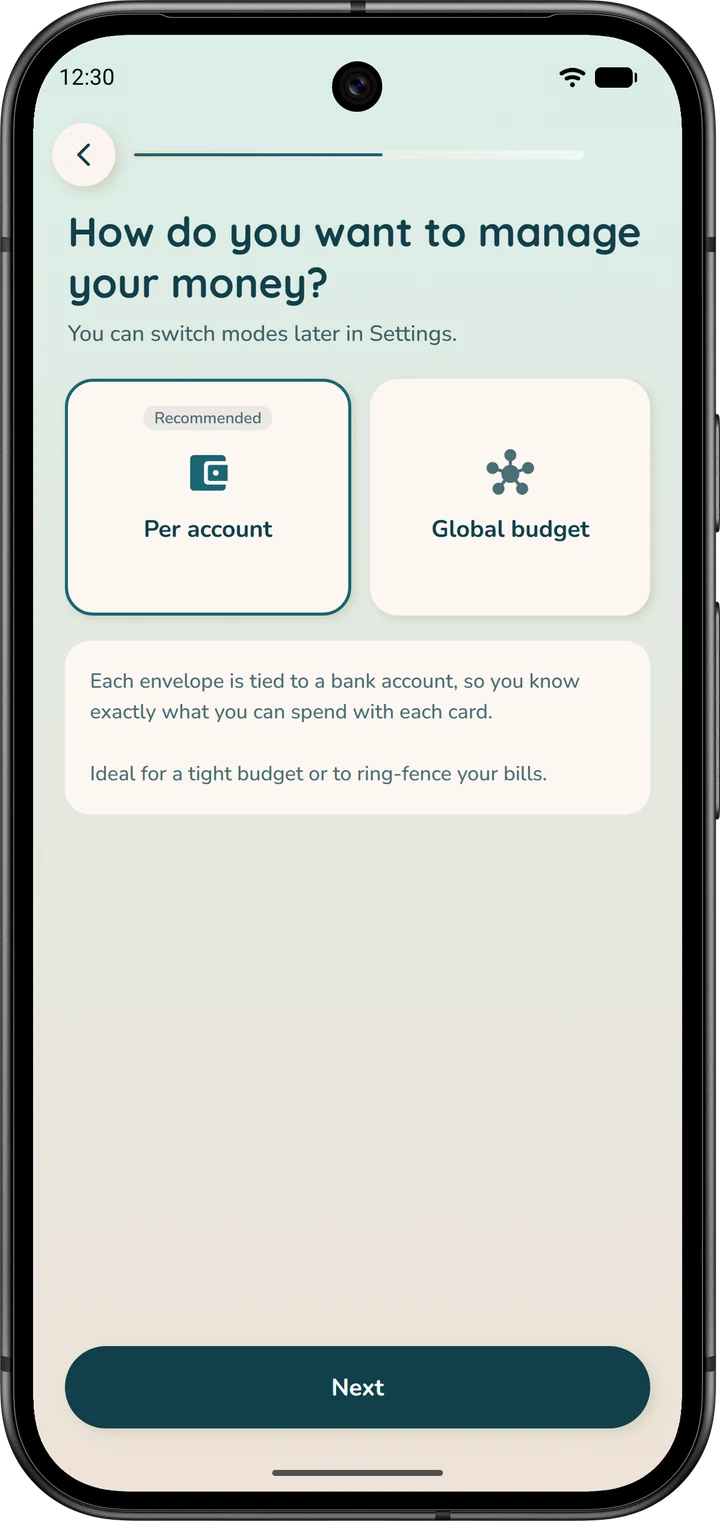
- your budget mode, “Per account” or “Global budget” (step 3);
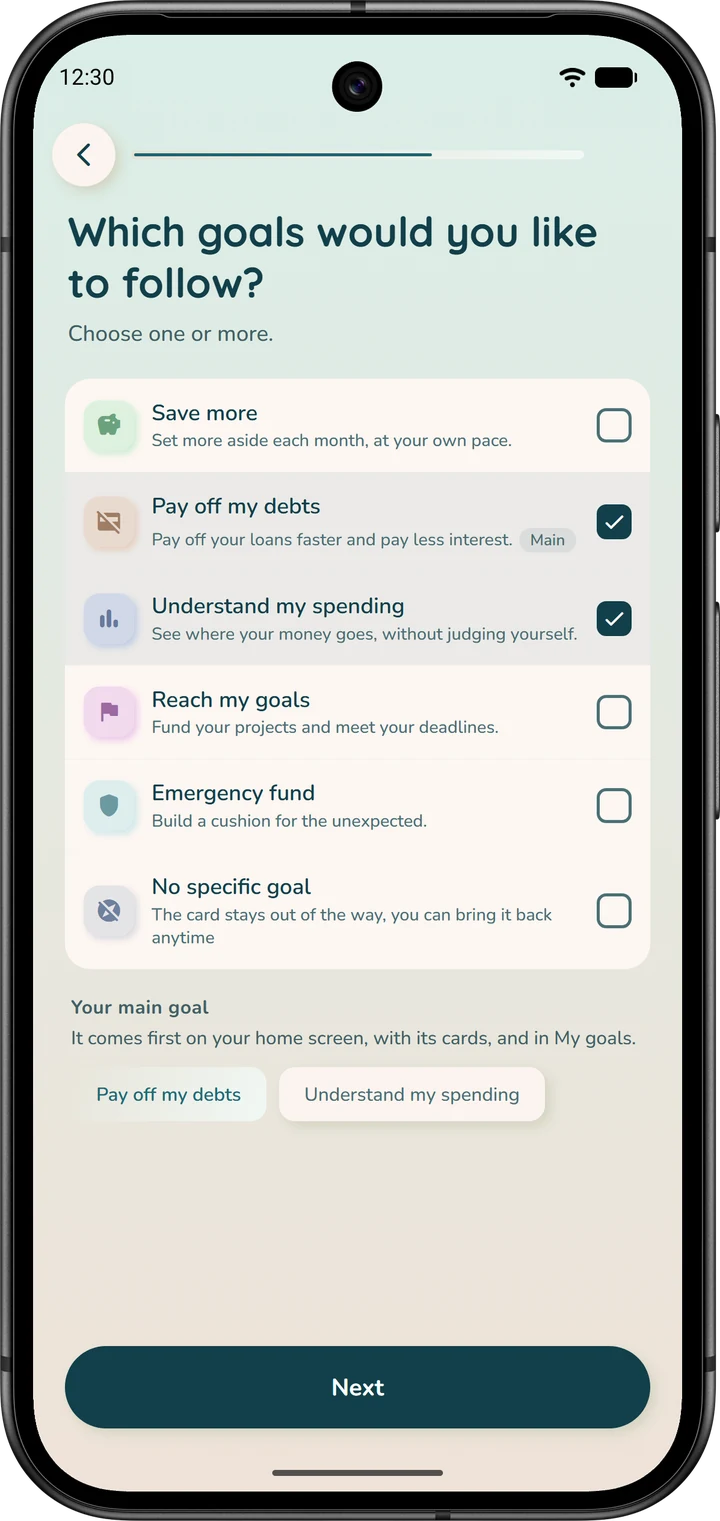
- your goals, one or more, for example “Emergency fund” or “Pay off my debts”: they make up the “My goal” area of the home screen;
- whether or not you use physical envelopes.
Next come an optional widget for your phone's home screen and your notification preferences (“Vigilant”, “Balanced” or “Minimal”). Tap “Finish”: the app's home screen opens.
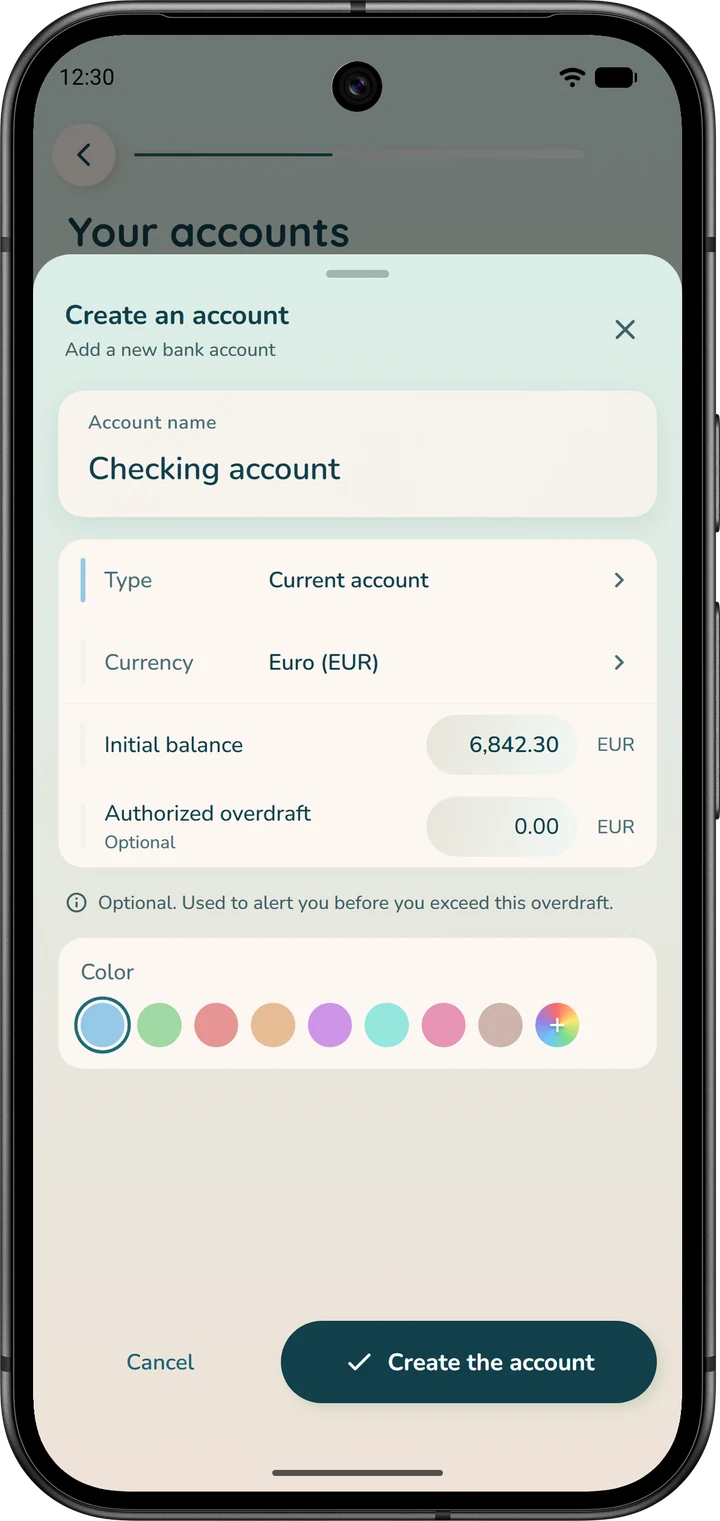
The initial balance: don't skip it. Enter the real balance of your account, as your bank shows it today. Left empty, it counts as zero, and all your numbers will be off by that amount.
You can correct it at any time. Open the “Accounts” tab and tap the large amount under “Current balance”: the “Edit account” sheet opens.
Fill in “Current balance” and tap “Save”. The app reminds you: “Enter the real current balance of this account.”
The ⋮ menu at the top right of the page leads to the same place, with “Edit account”.
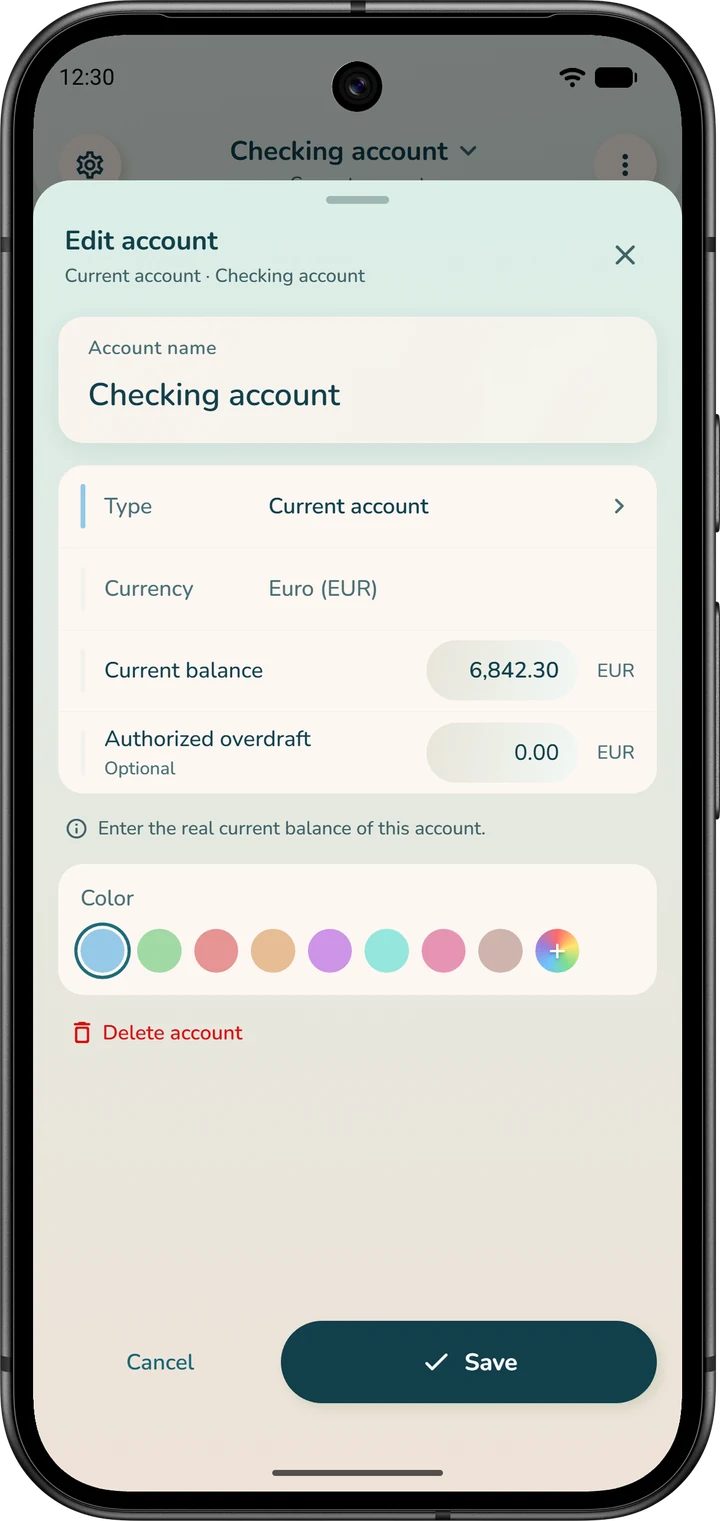
The wizard asks for at least one account. You can add others once you're in the app, from the “Accounts” tab: ⋮ menu at the top right, then “Create an account”.
Choose your budget mode
iBudgetAll offers two modes, so everyone can find one that fits. Neither is better across the board: they match two different ways of managing money.
“Per account”, recommended to start with
Each envelope is tied to one specific bank account, and the money it holds is really in that account. For example, your “Groceries” envelope is linked to your checking account.
So you know exactly what you can spend with each card, and the money for your bills stays set aside. It's the safest mode when you're getting your budget back under control.
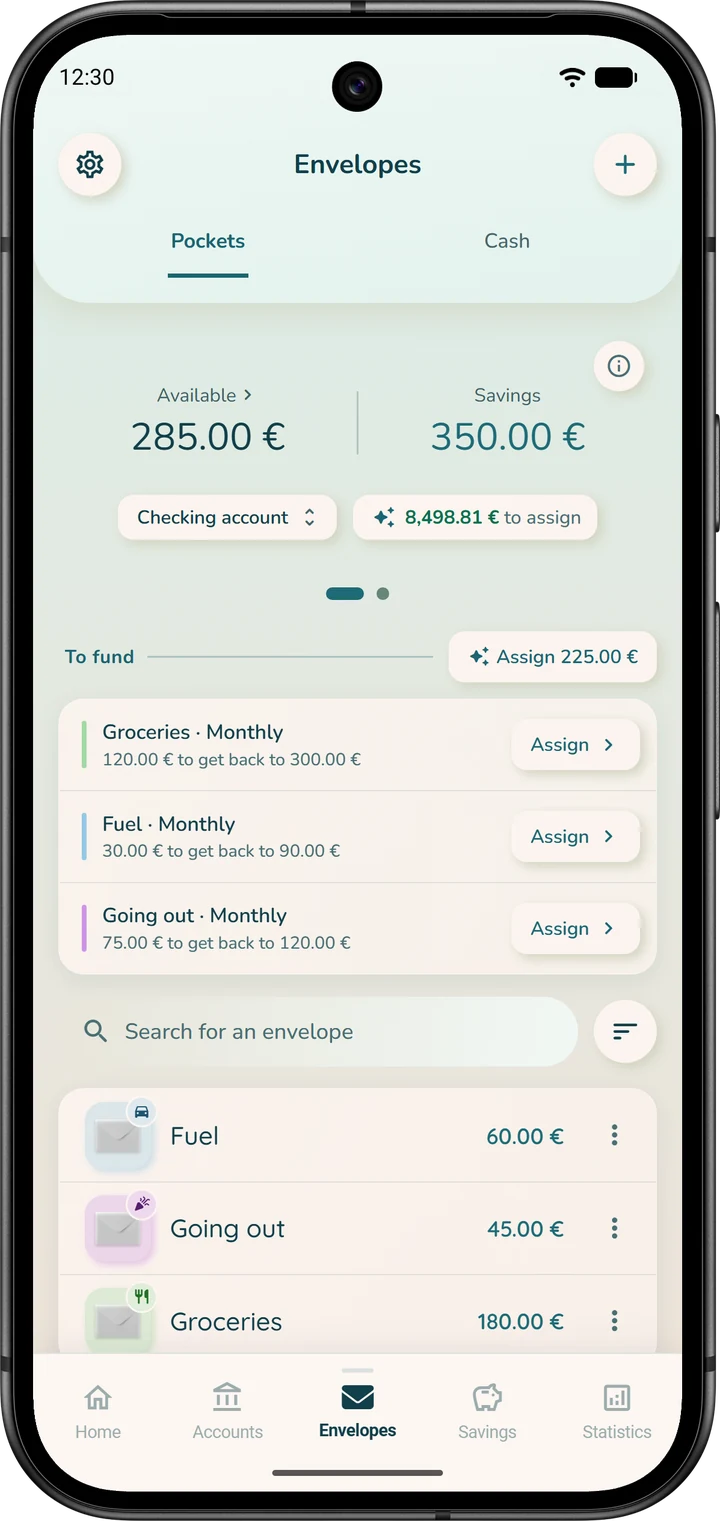
Your virtual envelopes are in the “Envelopes” tab, at the bottom of the screen, under “Pockets”. Below the header figures, the account pill shows which account you're looking at: tap it to pick another one.
At the top you'll see “Available” (what's left in your spending envelopes) and “Savings” (your savings envelopes). Next to the account pill, a second pill shows the money in that account that is still “… to assign”. Swipe the header to see the breakdown as a ring chart.
That's also where you create your envelopes, with the “+” at the top right, and where you assign your money to them.
If you've turned on physical envelopes, meaning cash, they have their own tab, “Cash”, next to “Pockets”.
“Global budget”
All your accounts form a single budget, and your envelopes no longer depend on any account: only the category matters. Your “Groceries” envelope is filled from all your accounts combined, whichever card you pay with.
This mode is more flexible if your money is spread across several accounts, for example a personal account and a joint account. The trade-off: the app can no longer guarantee that each account has enough money for what you spend from it. Keep an eye on your real balances to avoid an overdraft.
That's why we recommend it once your budget is already stable.
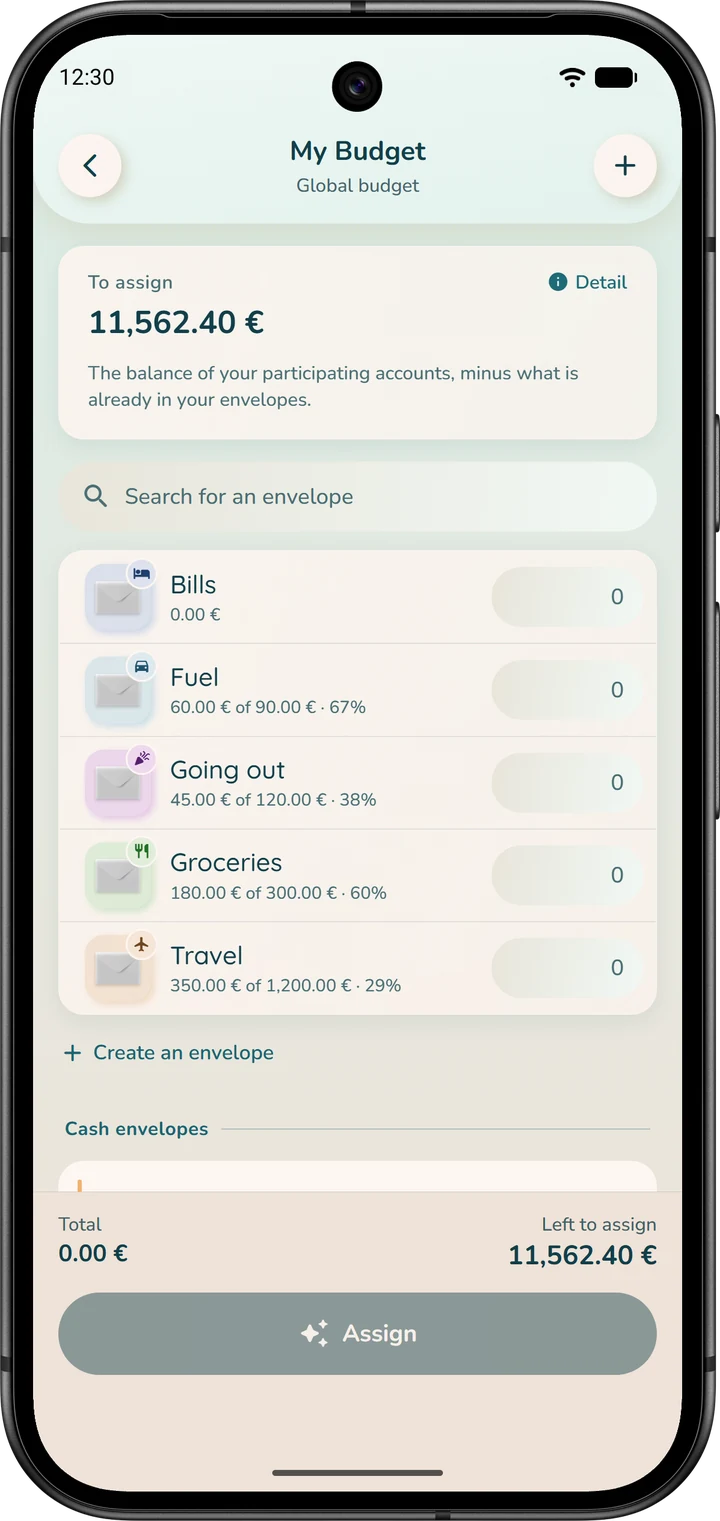
Your virtual envelopes are in the same place, the “Envelopes” tab under “Pockets”, but all together: no account pill. The “… to assign” pill shows the money in your accounts that is not yet in any envelope; it opens “My Budget”.
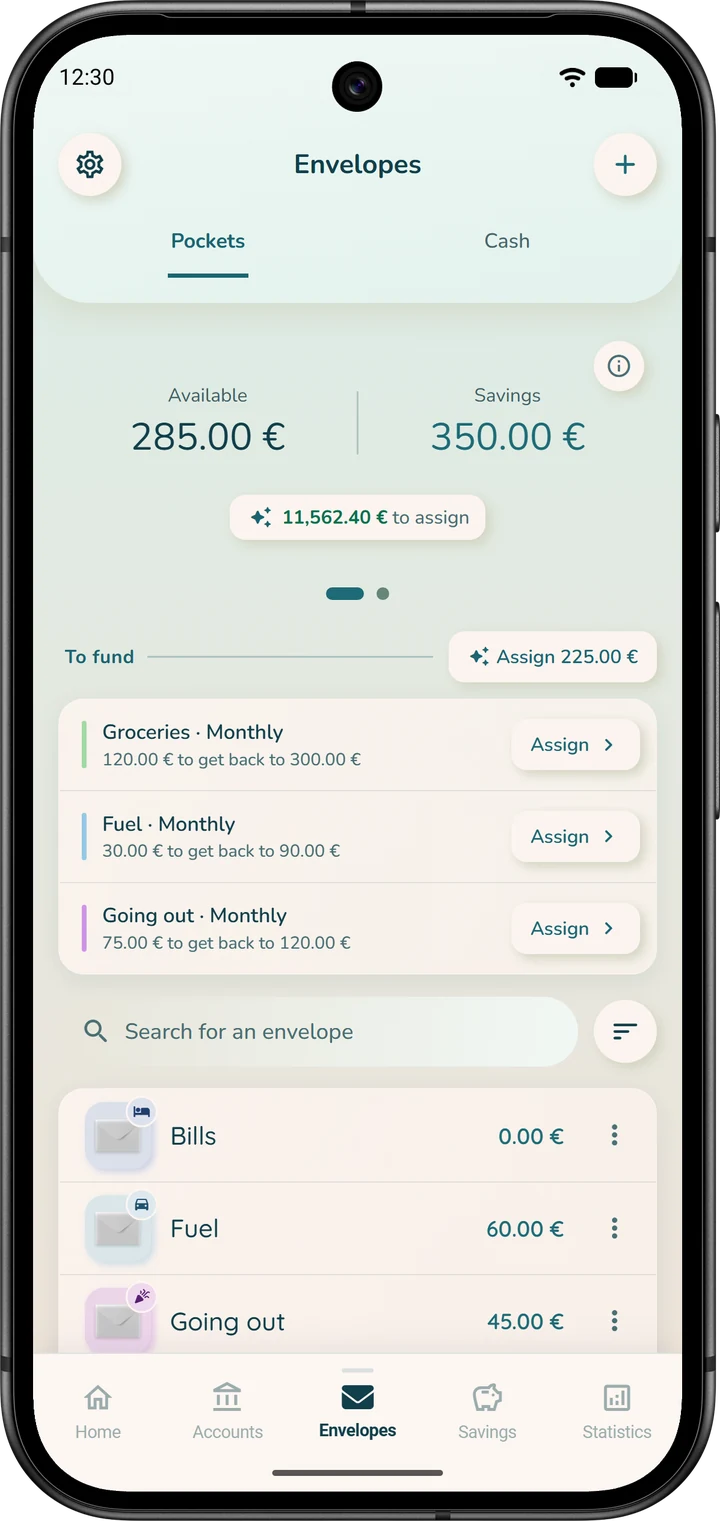
In summary: “Per account” is more precise and safer; “Global budget” is more flexible, but you'll need to keep a closer eye on your balances.
Switching modes, and physical envelopes
You can switch modes at any time. On the home screen, tap the round “Settings” button; on the other tabs, it's the gear at the top left.
In the “My budget” section, the “Budget mode” row shows the current mode. Tap it: a sheet offers “Per account” or “Global budget”, with this reminder: “Changing mode first creates a backup of your data.”
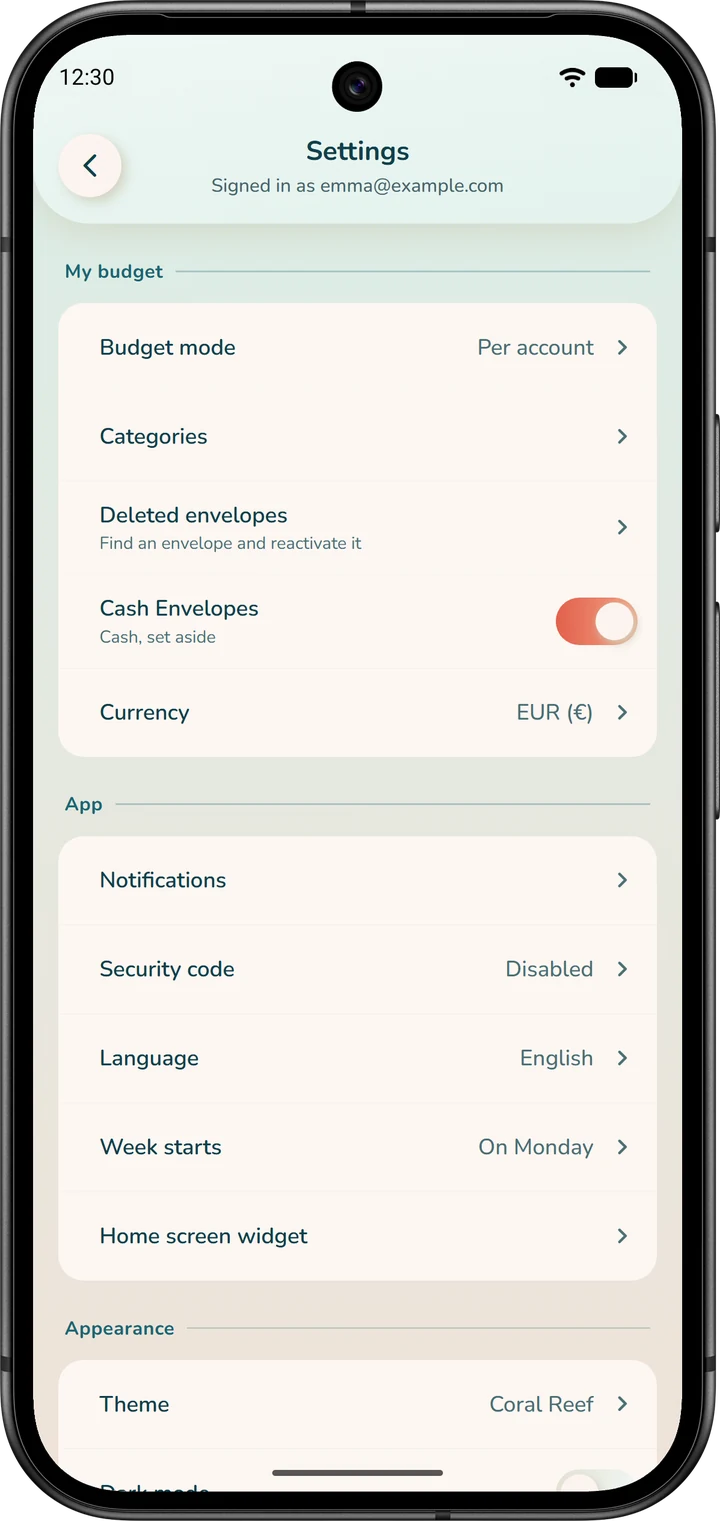
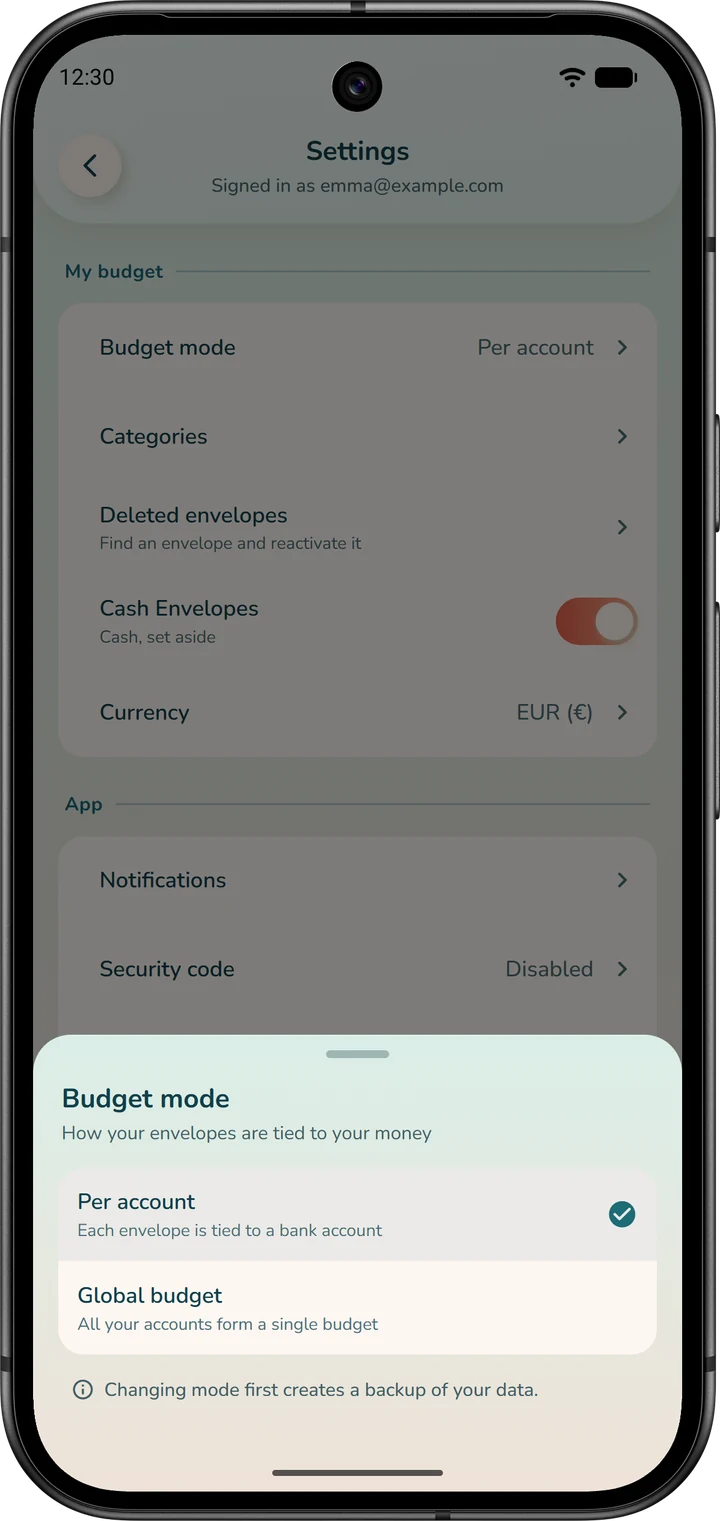
To switch to “Global budget”, confirm with “Switch to a global budget”: the app does almost everything for you. If you have recurring expenses without an envelope, it then offers to give them one (“Set money aside for your bills”), which you can put off with “Later”.
To go back to “Per account”, the “Switch to a per-account budget” sheet asks which account to attach each envelope to, then you tap “Continue”.
In the same section, the “Cash Envelopes” switch shows or hides the “Cash” tab of the “Envelopes” page, in both modes. If you don't use cash, you can turn it off.
Enter everything in “My Finances”
“My Finances” is the master list of everything that recurs: income, fixed expenses, transfers and automatic savings. You enter each line only once.
After that, the app records it automatically in the chosen account, on its date. So don't also enter it by hand, or it will be counted twice.
On the home screen, tap the “My Finances” shortcut, under the header card.
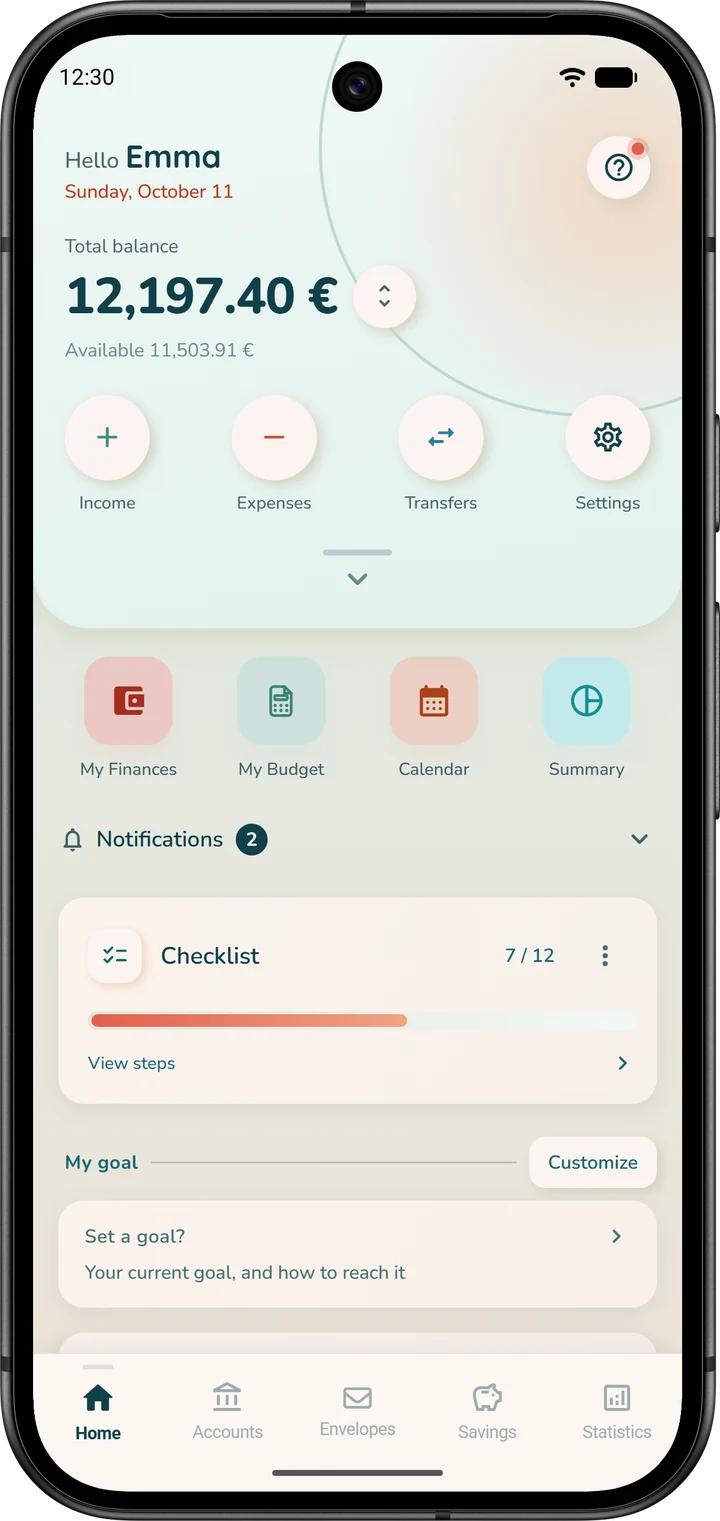
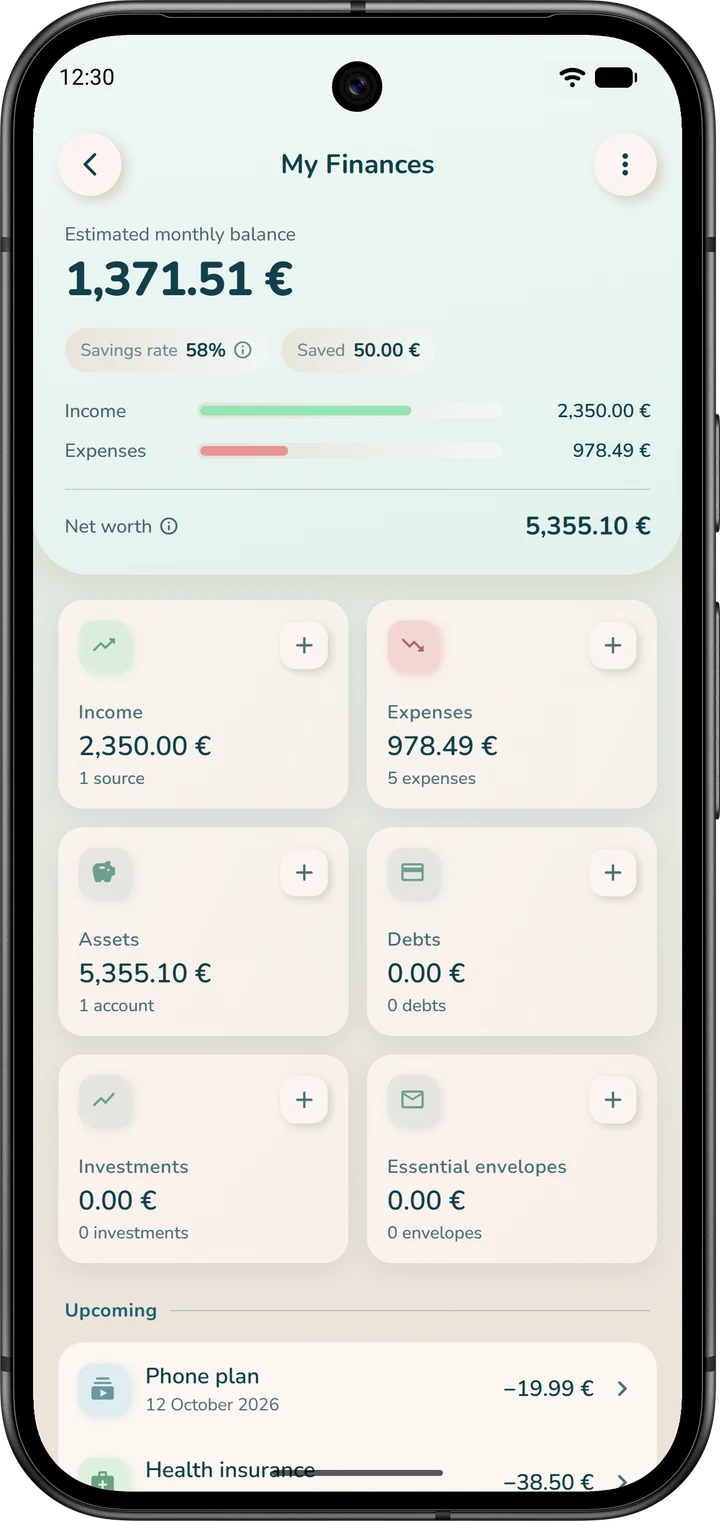
At the top of the page is your “Estimated monthly balance”. Below it are cards, including “Income” and “Expenses”, each with a small “+” for adding an item. Further down is the “Upcoming” section.
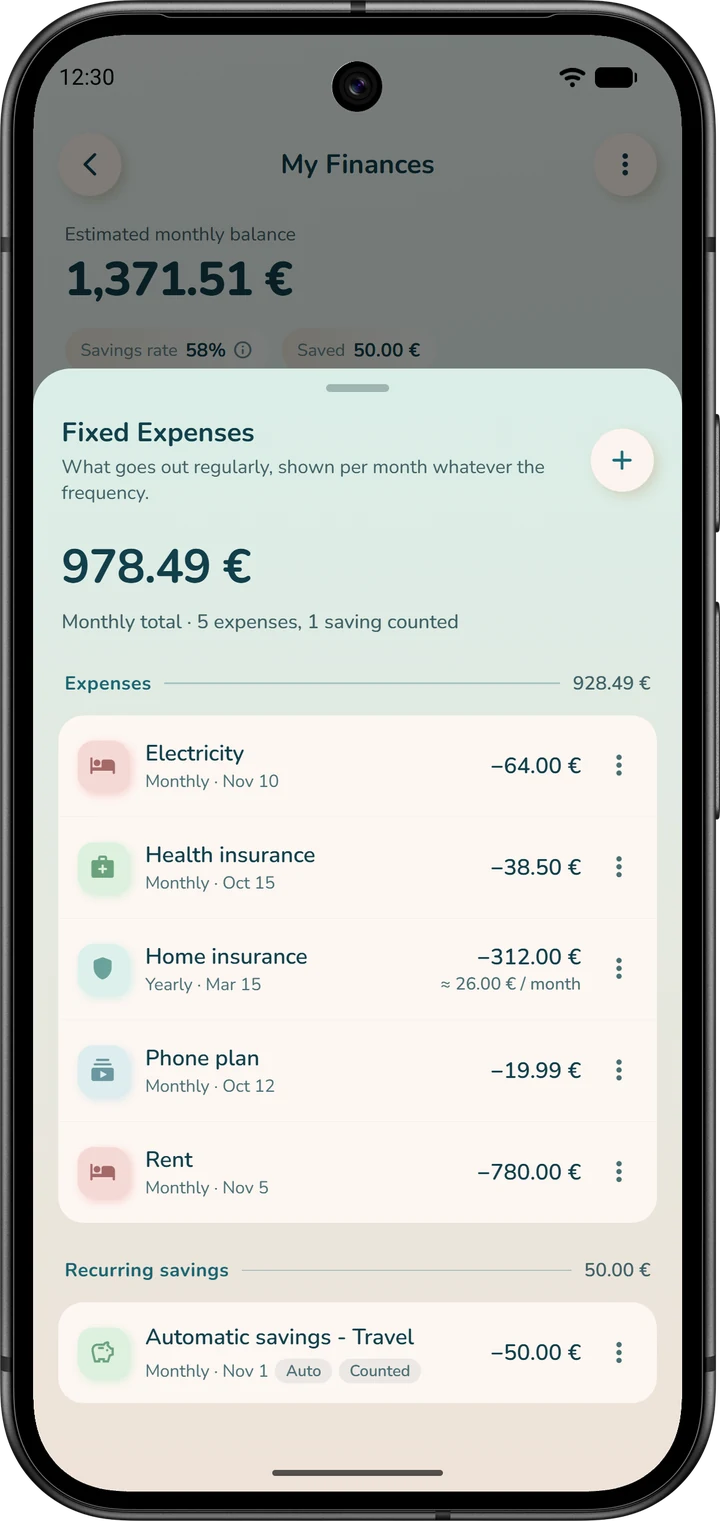
The “Expenses” card opens the “Fixed Expenses” list. It groups your fixed expenses, your “Recurring transfers” and your automatic savings (“Recurring savings”).
A fixed expense
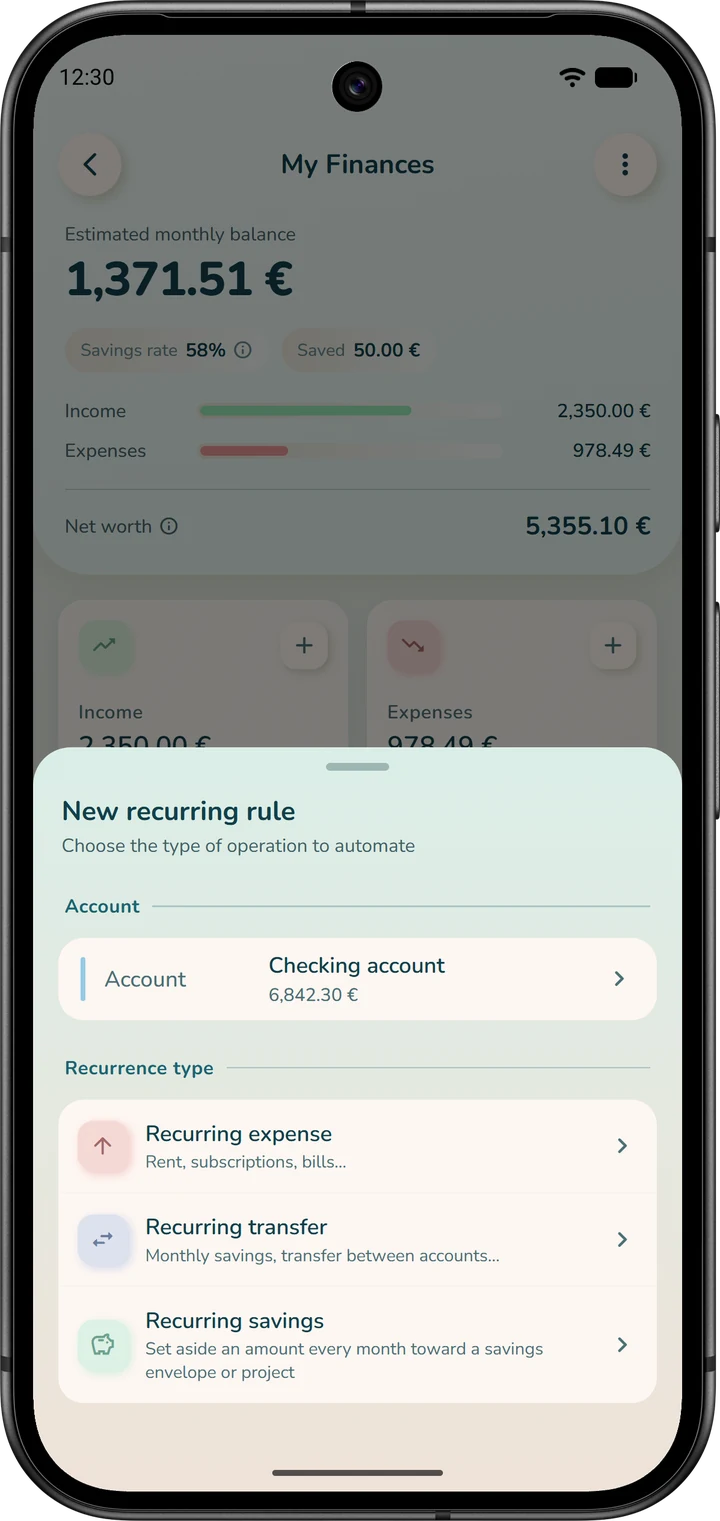
- Tap the “+” on the “Expenses” card: the “New recurring rule” sheet opens.
- Check the “Account” that will be debited, then choose “Recurring expense”.
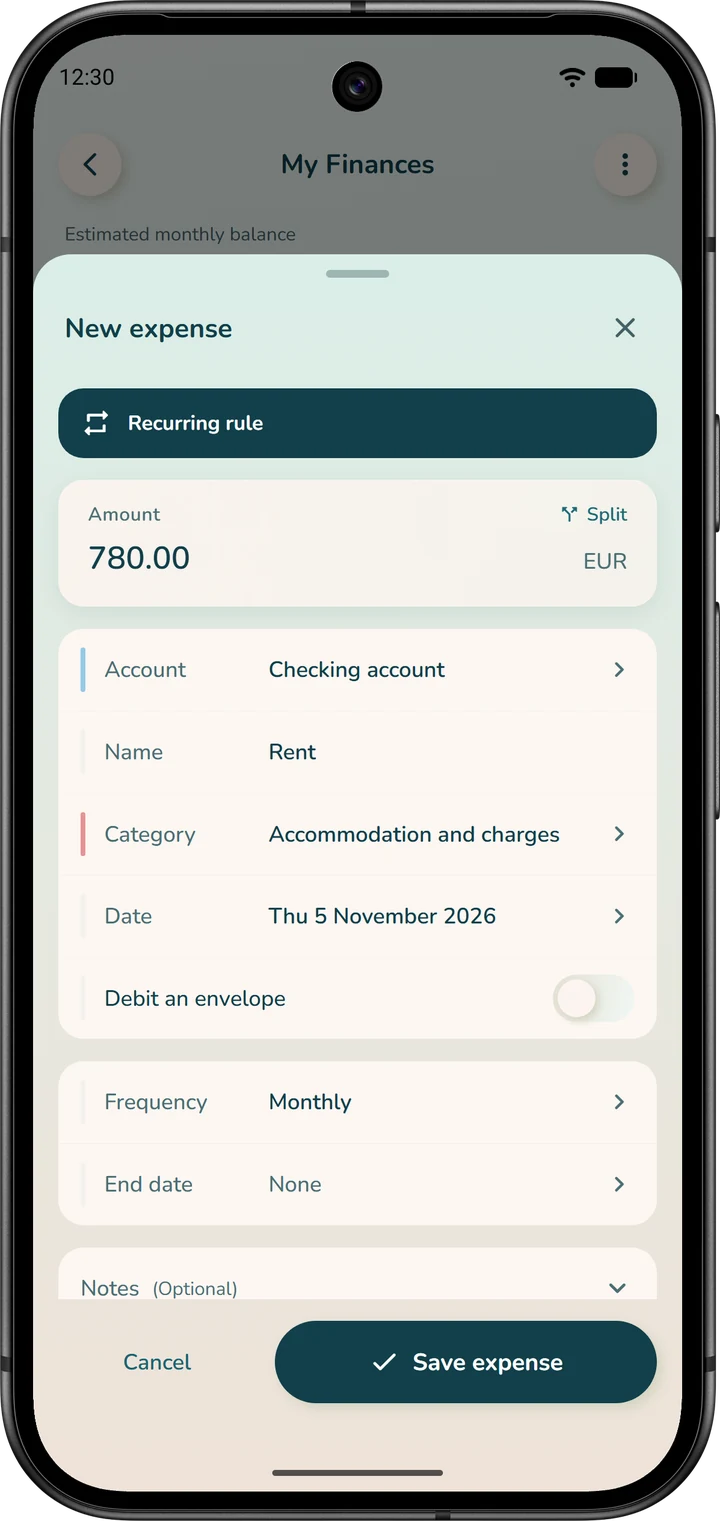
- Enter the “Amount”, the “Name”, the “Category” and the “Date” of the next payment (see below).
- Choose the “Frequency”: “Monthly” for rent. The “End date” stays at “None” if the expense doesn't stop.
- Tap “Save expense”.
Shortcut: the round “Expenses” button on the home screen opens “New expense”; choose “Fixed” at the top of the form.
The app will then record this expense every month, on its date. It will be counted in your expenses and in your forecasts. It appears right away in the list of expenses, and in the “Upcoming” tab of your account.
The date. Enter the date of the next payment. If this month's has already gone through, choose next month's: this month's is already reflected in your balance. Your current balance doesn't change: the transaction will be recorded on its date.
If you pick today or a past date, the app records the transaction right away, along with every occurrence between that date and today.
Taking it from an envelope. Optionally, turn on “Debit an envelope” and choose the “Envelope”. On each due date, the app records the transaction in your account and deducts it from both the account balance and the envelope. Don't enter it a second time: it would be counted twice.
Most fixed expenses don't need an envelope: in “Per account” mode, they are already deducted from what's left to assign (step 5).
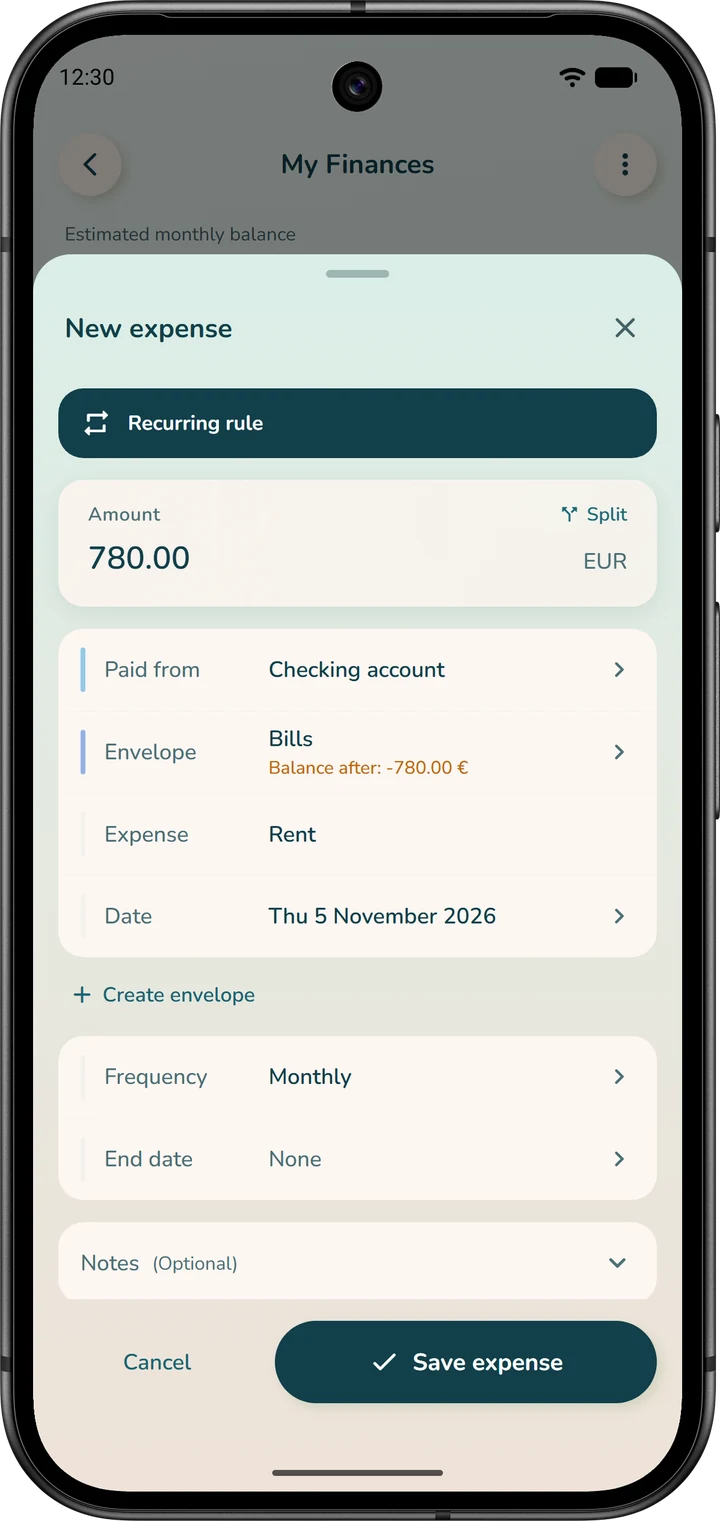
In “Global budget” mode, the envelope is no longer optional. The form asks for the “Envelope” that pays for the expense, in place of the category, and the account field is labeled “Paid from”.
A source of income
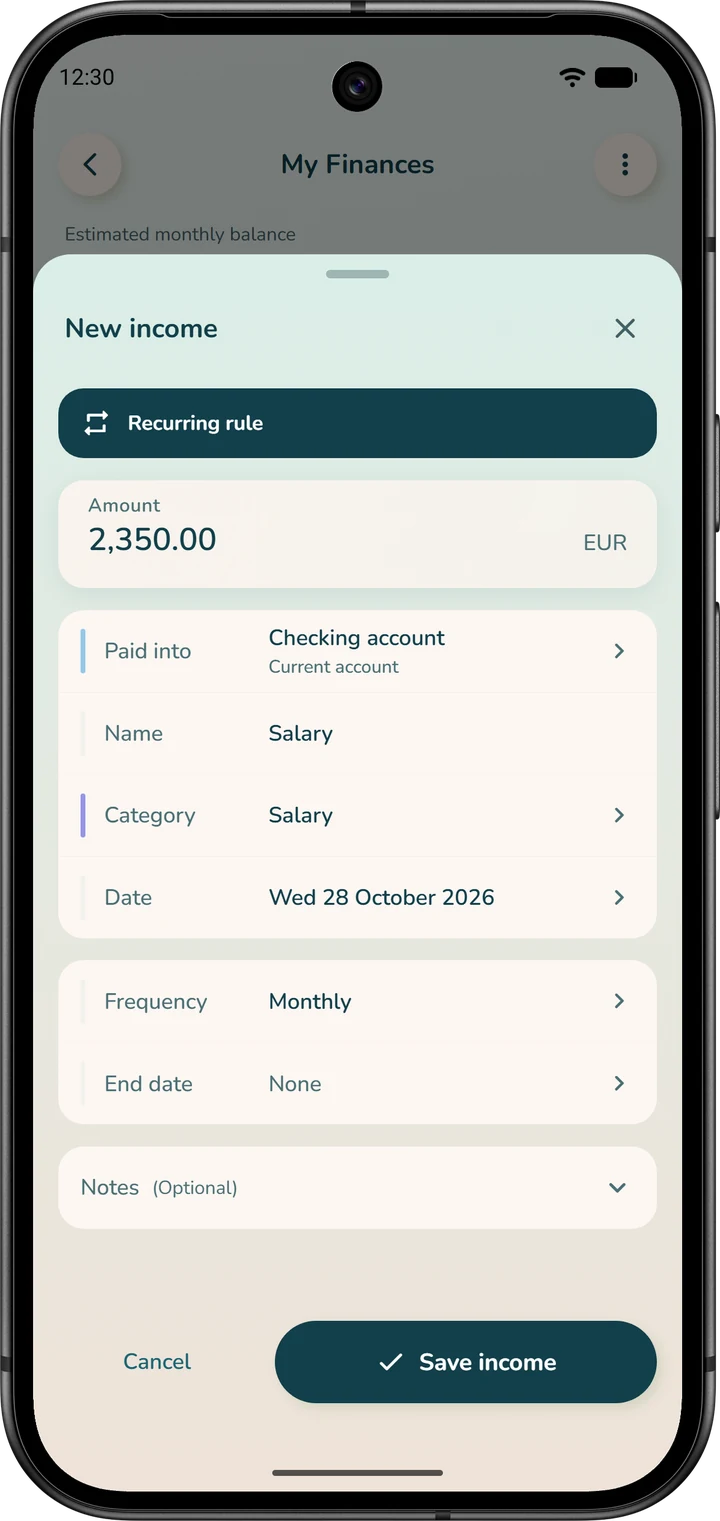
It works the same way from the “Income” card: tap “+”, then “Recurring income”. The “New income” sheet asks for the “Amount”, the account (“Paid into”), the “Name”, the “Category”, the “Date” of the next payday and the “Frequency”. Tap “Save income”.
Income never touches an envelope: it credits the account. When the day comes, it therefore increases what's left to assign in that account, and you then assign it to that account's envelopes (step 5).
For one-time income that doesn't repeat, tap the round “Income” button on the home screen.
A recurring transfer
From the “+” on the “Expenses” card, choose “Recurring transfer”. Enter the “From” account, the “To” account, the amount, the “Date” and the “Frequency”, then tap “Create the transfer”.
iBudgetAll records the transfer in the app, but doesn't make it at your bank: it's up to you to set it up there.
Automatic savings
There are two ways to set it up:
- from “My Finances”: “+” on the “Expenses” card, then “Recurring savings”. The “Automatic savings” sheet asks for the “Amount to save”, the “Source account”, the envelope that receives it (“To envelope”), the “Frequency” and the “Start date”. Tap “Create automatic savings”. A savings envelope must already exist;
- from the envelope itself, in the “Automatic savings” section of the creation form (step 5).
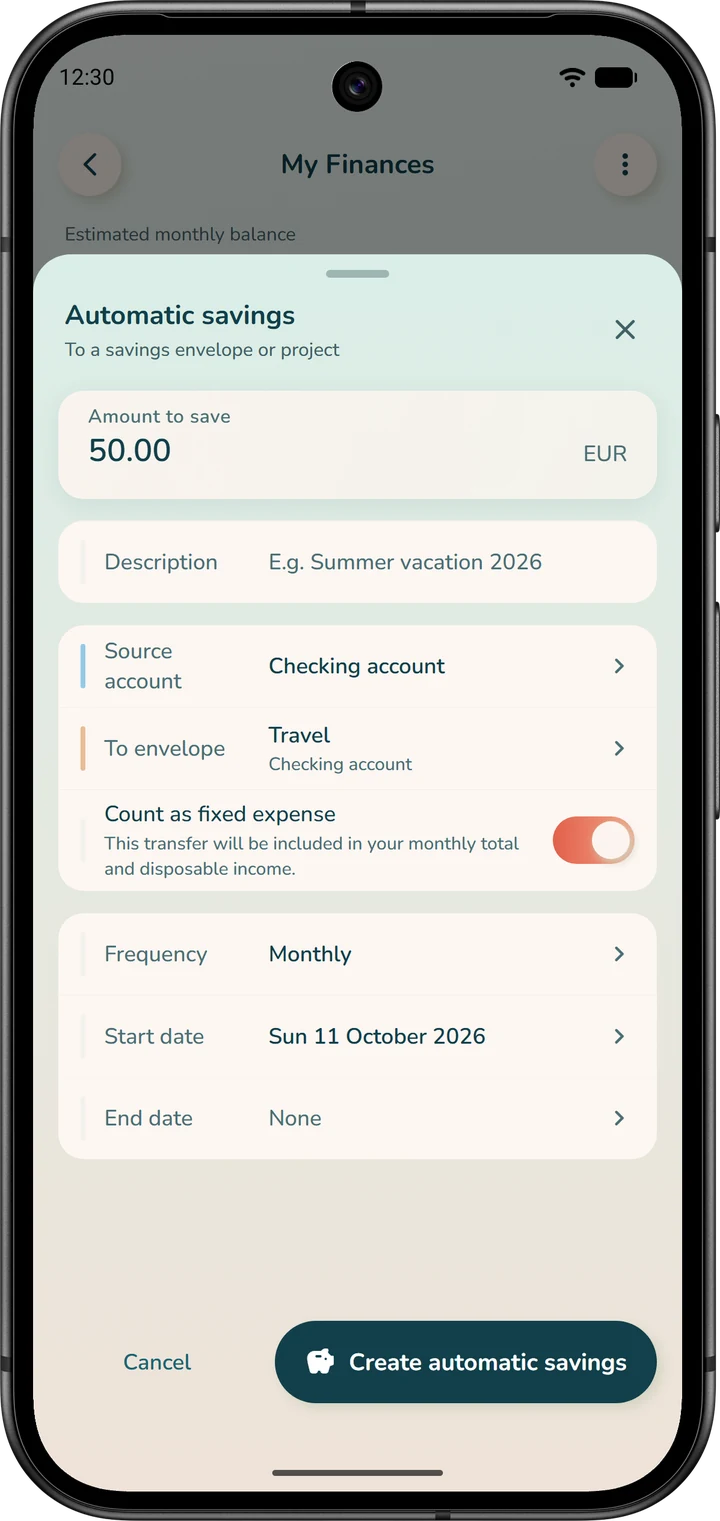
If the source account isn't the envelope's account, the app records a transfer from that account to the envelope's account. Remember to set it up at your bank: the app doesn't make it itself.
In “Per account” mode, each automatic savings rule is already deducted from what's left to assign, because the money it sets aside is no longer available. For a monthly bill, the fixed expense is enough: adding automatic savings for it as well would count the bill twice.
In “Global budget” mode, it's called “Recurring assignment”: it assigns an amount to an envelope each month.
A quarterly or annual bill
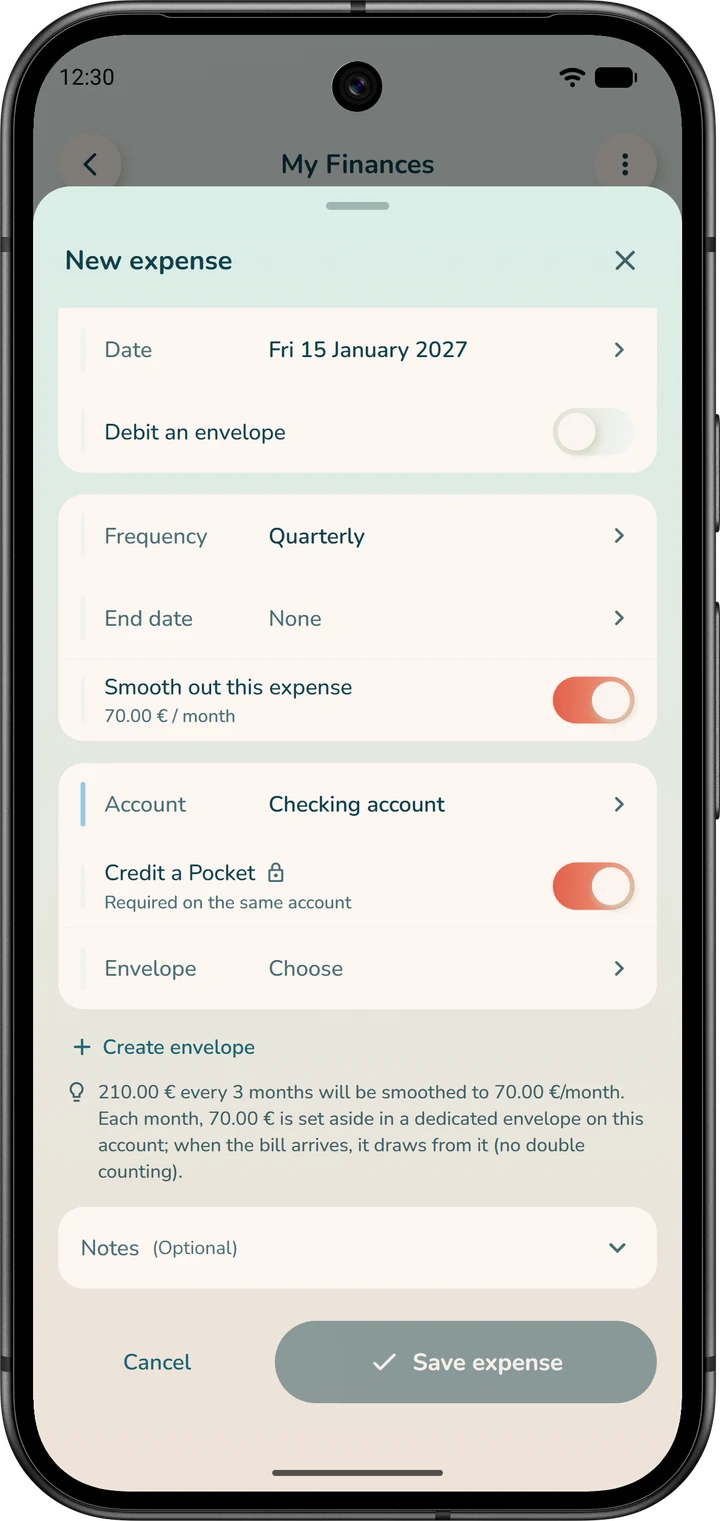
Schedule it like a fixed expense, with the frequency “Quarterly” or “Yearly”. The “Smooth out this expense” option then appears.
The app sets aside an amount each month in a dedicated envelope. On the day the bill is due, the app takes the money directly from that envelope.
You choose a “Provision account”. If it's the account of the expense, an envelope is required. If it's another account, the provision becomes a monthly transfer to that account.
Edit rather than recreate
Before creating anything, check the list first: it's the only list that counts. To change an amount or a date, edit the existing line rather than creating a new one.
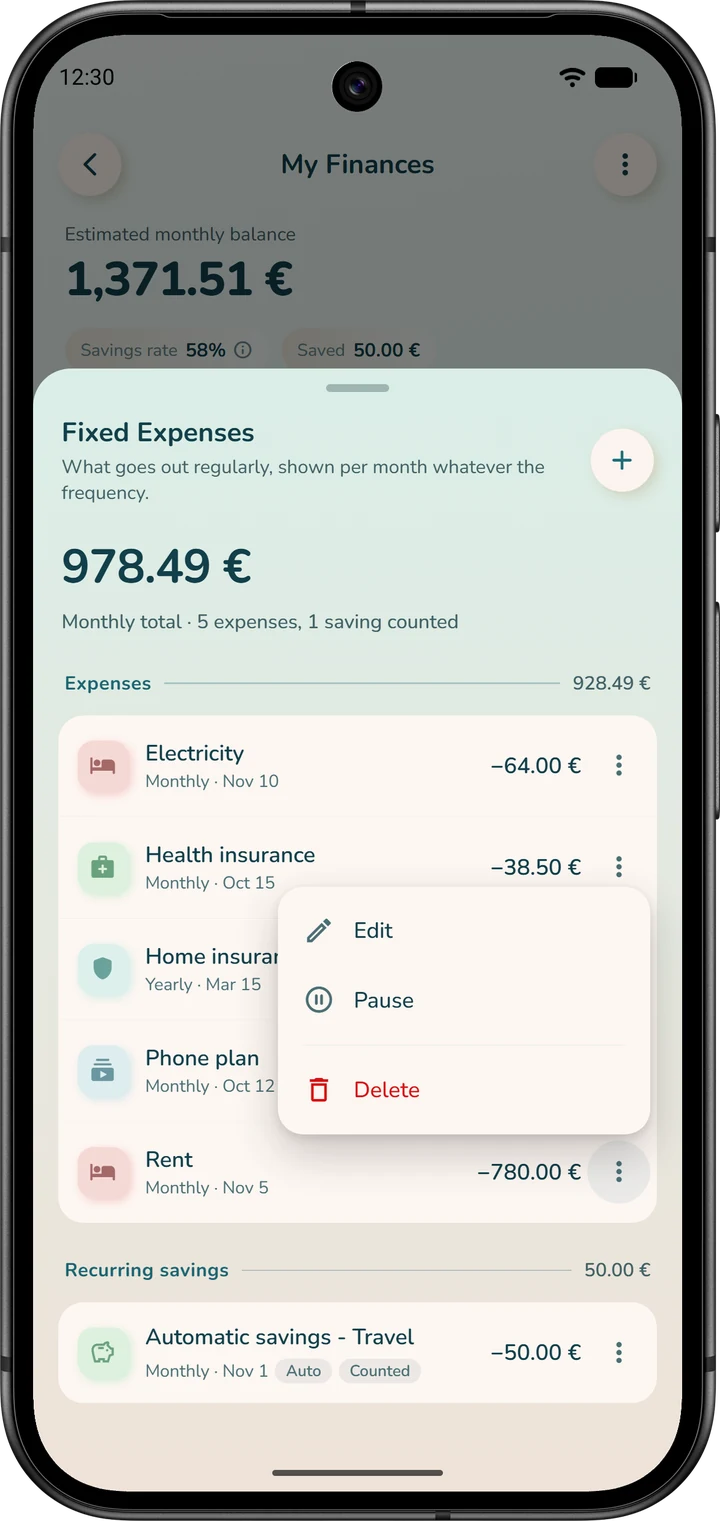
In the “Fixed Expenses” list, the ⋮ menu of each line offers “Edit”, “Pause” and “Delete”. Income is managed the same way, from the “Income” card.
“Pause” suspends the rule without deleting it. To turn it back on, tap the line to open its details, then tap “Activate”.
Create your envelopes and assign your money
You don't need an envelope for every fixed expense. Your scheduled recurring expenses (rent, subscriptions, loan, insurance) are debited directly from your account on their date. In “Per account” mode, you therefore don't need to create an envelope for them: the app already deducts them from what's left to assign.
In “Global budget” mode, the form for a fixed expense asks for an envelope (step 4).
Envelopes are mainly for two things:
- the variable expenses you want to keep in check: groceries, fuel, going out, entertainment;
- the irregular expenses to plan for: vacations, gifts, car maintenance.
You put in a little money each month so you're not caught off guard when the time comes.
Create an envelope
- Open the “Envelopes” tab and check the account on the pill, under the header figures (tap it to switch accounts).
- Tap the “+” at the top right of the screen.
- Choose the type (“Needs”, “Wants” or “Savings”), give it an “Envelope name”, then choose a “Category”: it's required.
- For a variable expense, fill in a “Goal (optional)”: the “Period” appears, for example “Monthly”, with its “Starts” date. For a “Savings” envelope, the goal is the amount to reach, with a “Target date”.
- If needed, add an “Initial amount” and “Automatic savings” (see below), then tap “Create”.
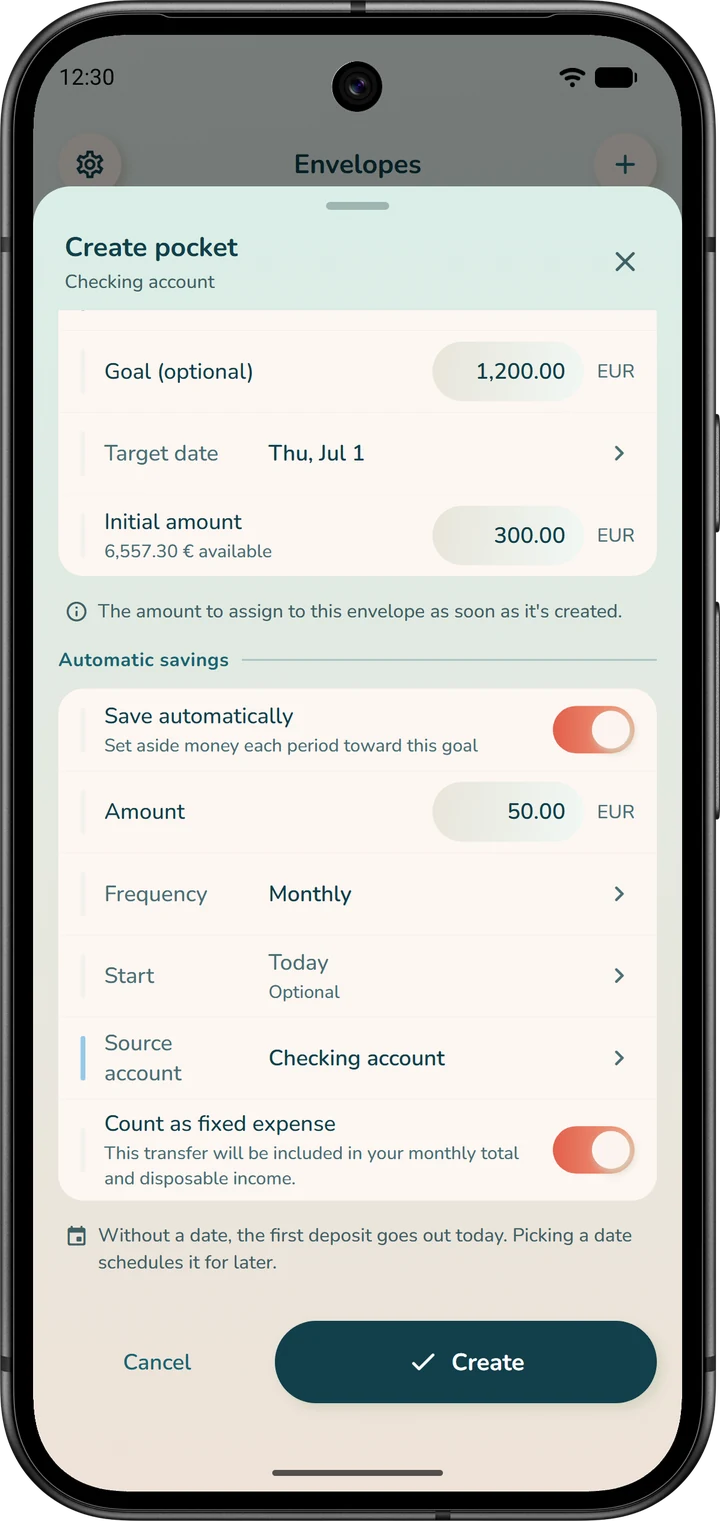
The “Initial amount”. It's a one-time deposit, made at creation: the money you've already set aside for this envelope. It comes out of the money in your account that isn't in an envelope yet. Nothing moves at the bank: this money is simply reserved for the envelope.
“Automatic savings”. It's a deposit that repeats. Turn on “Save automatically”, then enter the “Amount”, the “Frequency” and the “Source account”. The app adds that amount to the envelope on each due date.
If you choose another account as the “Source account”, the app records a transfer from that account to the envelope's account. Remember to set it up at your bank.
An example. You already have 300 set aside for your vacation and you want to add 50 a month. Enter 300 as the initial amount and 50 a month as automatic savings.
The first automatic deposit happens on the day of creation, then on the same date each month: the envelope therefore receives 350 from day one.
What's left to assign
When money arrives in your account, it isn't in any envelope yet. In the “Envelopes” tab, the “… to assign” pill, next to the account pill, shows you how much.
This amount already takes the period into account: the account balance, minus what's already in envelopes, plus your upcoming income and minus your upcoming fixed expenses. What you assign to your envelopes therefore doesn't eat into the money planned for your bills. Tap the small ⓘ, in the corner of the header, for the full breakdown (“Available balance details”).
If you've assigned more than what's available, the pill turns amber and says “… short”. Tapping it shows how it's calculated.
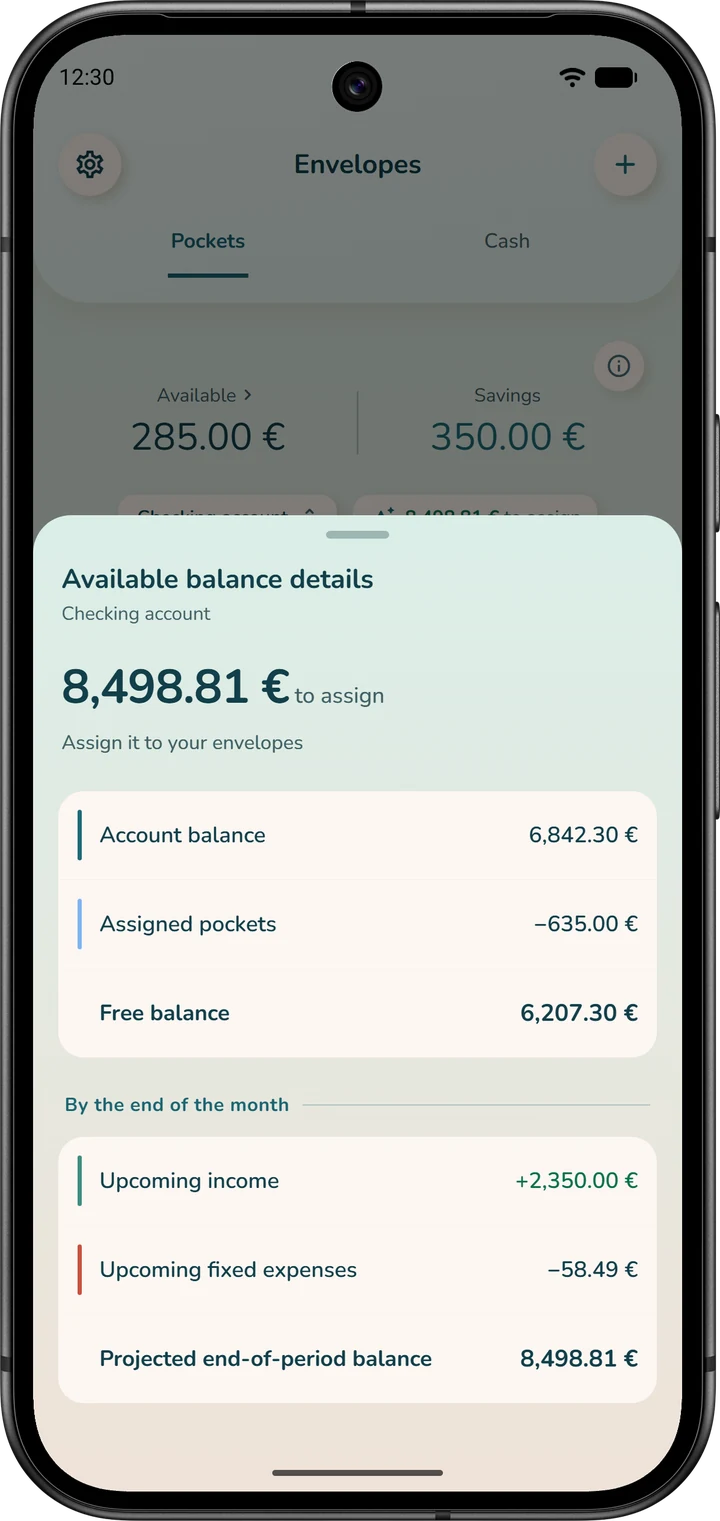
In “Global budget” mode, the “To assign” money (your “Participating accounts”, minus what's “Already in pockets”) doesn't subtract your upcoming payments. Give your fixed expenses an envelope to set the money aside before the due date.
Assigning from the “Envelopes” tab
It's the fastest way. Tap the “… to assign” pill: the “Assign your balance” sheet opens. Enter an amount next to each envelope; the “Needs”, “Wants” and “Savings” filters help you find your way around.
At the bottom, “Total” and “Left to assign” update as you type. Tap “Assign”: the money is assigned right away, with no draft step.
An envelope's ⋮ menu (“Assign”) and the “Assign” button on its detail sheet lead there too. Envelopes below their goal appear at the top of the list, in the “To fund” area, with their own “Assign” button.
Assigning the whole month with “My Budget”
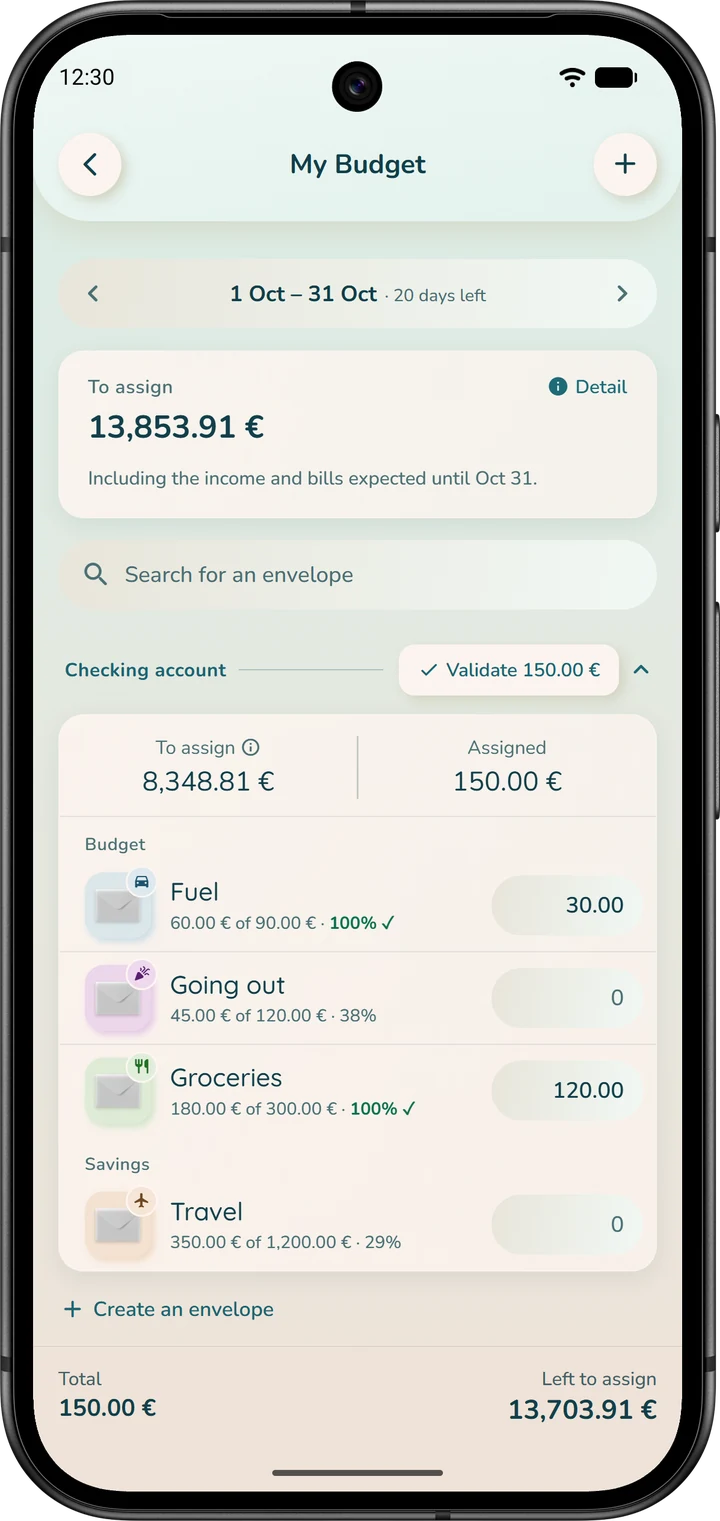
“My Budget” is for assigning the money in each account to its envelopes, for the whole period, as a draft that you validate account by account.
- On the home screen, tap the “My Budget” shortcut.
- Check the period at the top of the screen. The arrows let you change it.
- Look at “To assign”: this amount already takes into account the income and expenses planned until the end of the period (tap “Detail” to see the calculation).
- Each account has its own card, with its envelopes listed under “Budget”, “Savings” and “Projects”. Next to each envelope, enter the amount to assign to it. Under its name, you see what it holds compared with its goal. The account's “To assign” and the “Left to assign” at the bottom of the screen go down as you type.
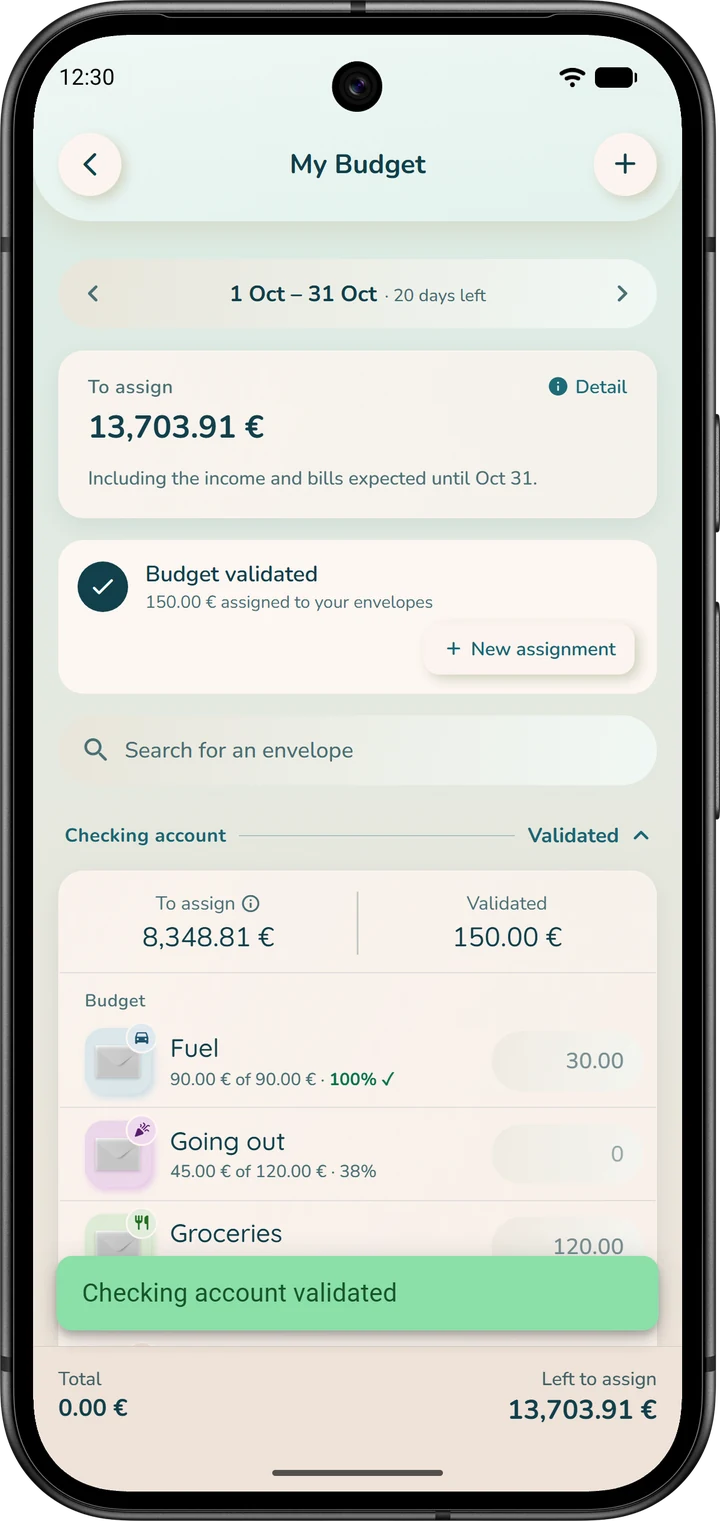
- Tap the “Validate …” pill, in the account's title: it appears as soon as an amount is entered. A message confirms “… validated”.
Until you validate, it's only a draft: nothing moves in your envelopes. When everything you entered is validated, the “Budget validated” card announces it; “New assignment” lets you start again. If you assign more than what's available, “Short by …” warns you, in amber.
On your next payday, if you want the same split again, tap “Reuse” in the “Reuse last budget” card: the amounts validated last time are prefilled. Adjust them if needed, then validate.
The home screen helps you remember: when money is waiting to be assigned, or a spending envelope is below its goal, the “Notifications” section of the home screen shows it (“Unassigned amount” and “To fund” lines).
Assign your money every payday: it's the habit that makes the whole app work.
In “Global budget” mode, “My Budget” has no period or per-account card: enter an amount per envelope, then tap “Assign”.
Deleting an envelope
In the list of the “Envelopes” tab, open the envelope's ⋮ menu, choose “Delete”, then confirm.
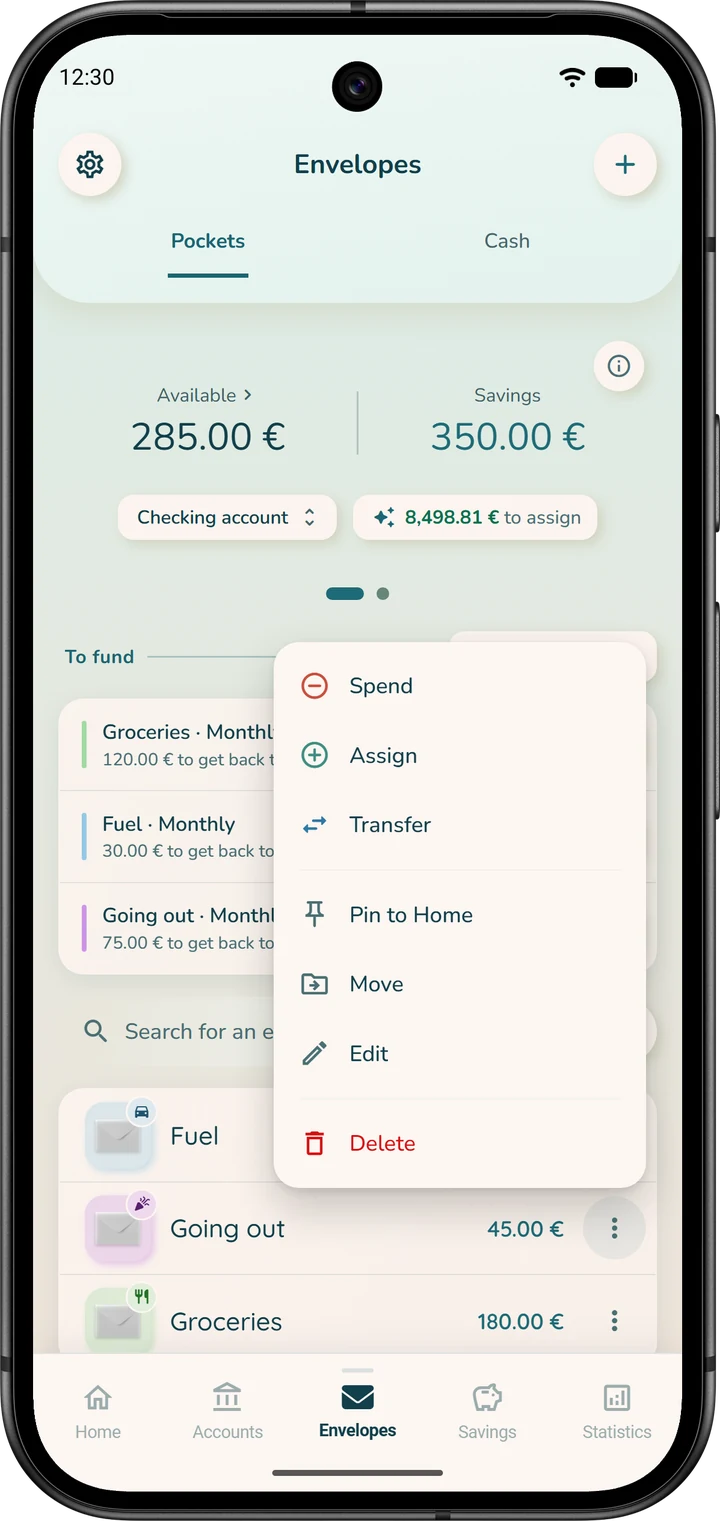
The money it held goes back to the account: you can assign it elsewhere. Your past transactions are kept. If recurring rules were linked to the envelope, the app asks what you want to do with them: “Repoint to another envelope”, “Detach” or “Disable these rules”.
Deleted by mistake? In “Settings”, open “Deleted envelopes” and tap “Reactivate”.
Day to day
A light routine. Fifteen minutes to get started, two minutes a day to enter or validate new transactions, and one round of assigning every payday.
Spending from an envelope
Two ways to do it:
- from the “Envelopes” tab: open the envelope's ⋮ menu, or tap the envelope to open its detail sheet, then tap “Spend”. The form opens with the envelope already chosen;
- from the home screen: the round “Expenses” button opens “New expense” on “Variable expense”. Turn on “Debit an envelope”, choose the “Envelope”, then tap “Save expense”.
In both cases, the amount is taken out of both the envelope and the account balance. Under the envelope's name, you see its balance after the expense.
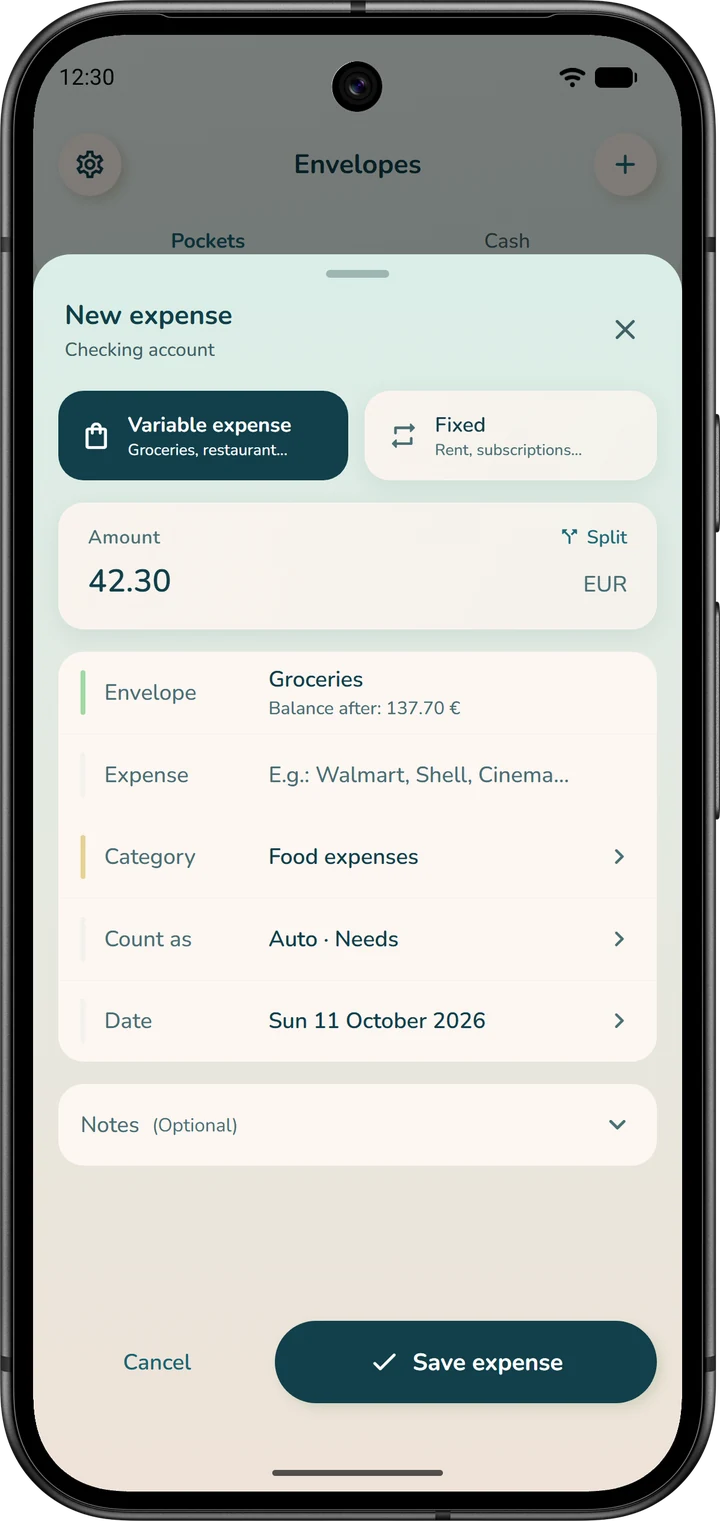
Do you already know the date and amount of an upcoming expense? Enter it now with its future date and link it to the envelope.
It appears in the account's “Upcoming” tab, and it's taken into account in the account's “End of period”. The envelope will be debited automatically when the day comes.
A fixed expense scheduled with “Debit an envelope” needs nothing more: don't enter it a second time.
If your bank is connected
The bank connection is optional. To turn it on: “Accounts” tab, “Sync this account” card, “Connect” button. When it's active, your transactions arrive in “Transactions to validate”.
You'll find them on the home screen, in “Notifications” (“Transactions to validate” line), and on the account page, in the card for your bank: “… transactions to validate”, “Review” button.
This card also shows “Bank balance”, the balance reported by your bank. If it differs from the app's, “Off by” tells you by how much.
Deal with the list first: the difference usually corresponds to the transactions not yet validated. If a difference remains once the list is empty, correct “Current balance” (step 2).
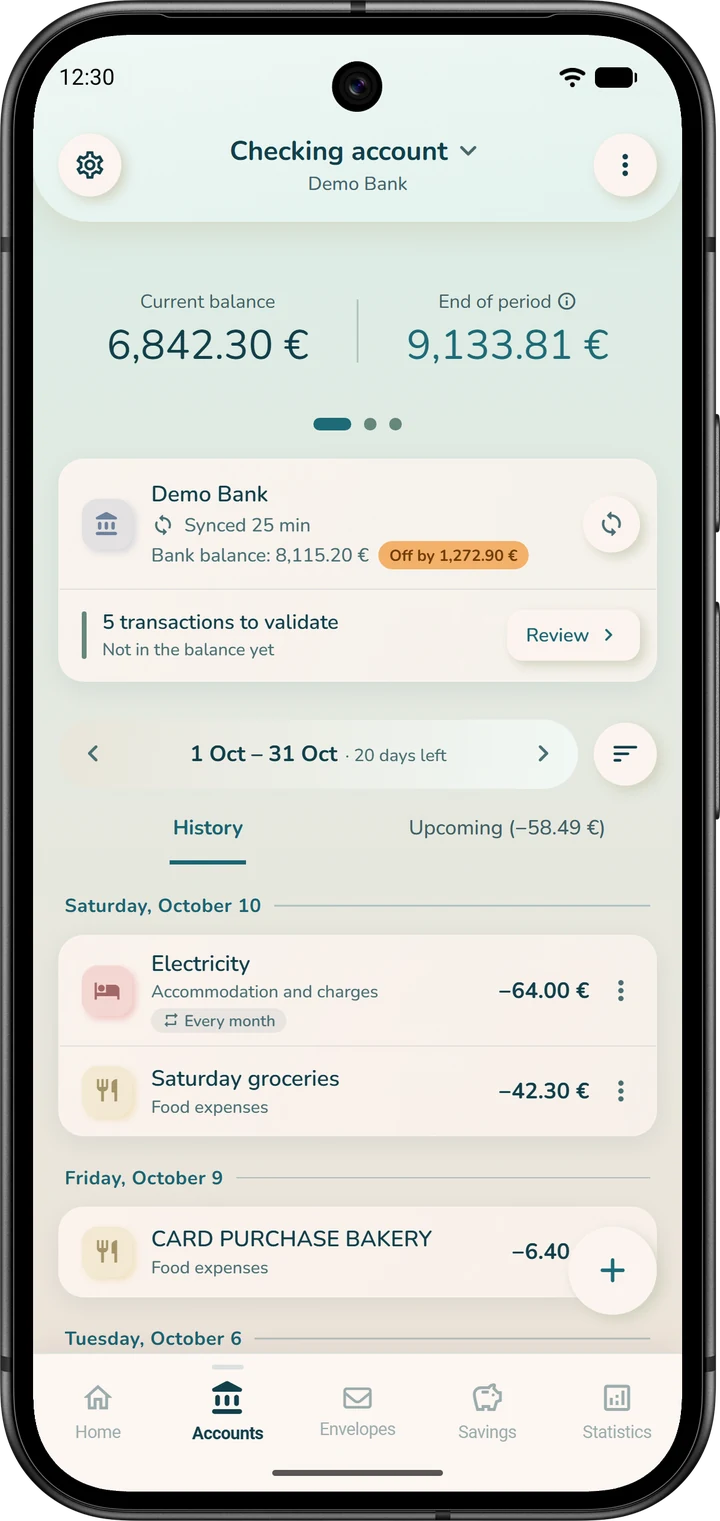
Two rules to remember. An imported transaction only counts once validated: if you ignore it, it isn't counted anywhere. And link rather than recreate, so that nothing is counted twice.
The list sorts the transactions into “Recognized” (the app already knows how to categorize them), “To sort” and “Upcoming”. You can validate a recognized transaction right from its card; when there are two or more, “Validate all” validates them all at once.
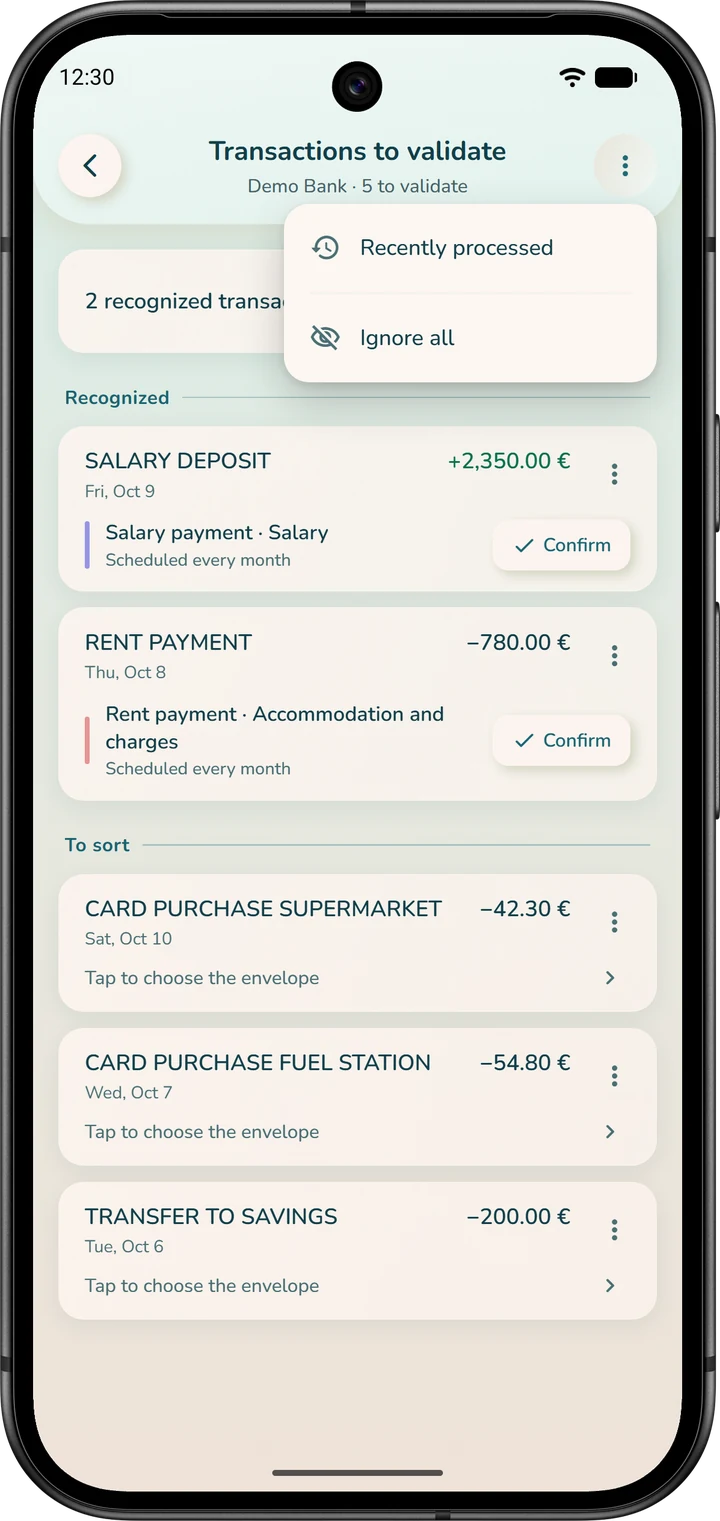
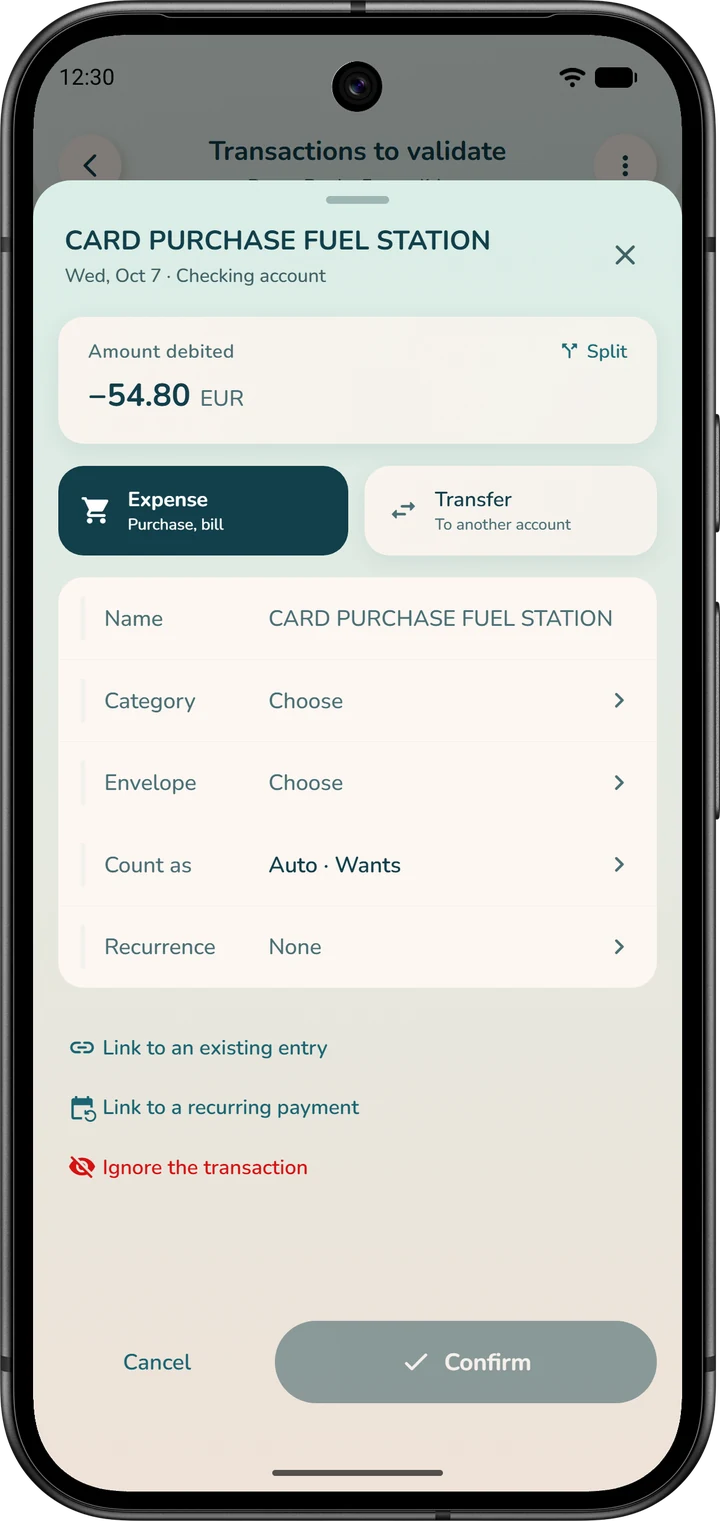
Tap a transaction to open its detail sheet. Check its “Name” and choose its “Category” or its “Envelope”: “Confirm” then becomes active. Tap it: the transaction is added to your account history, with no further confirmation.
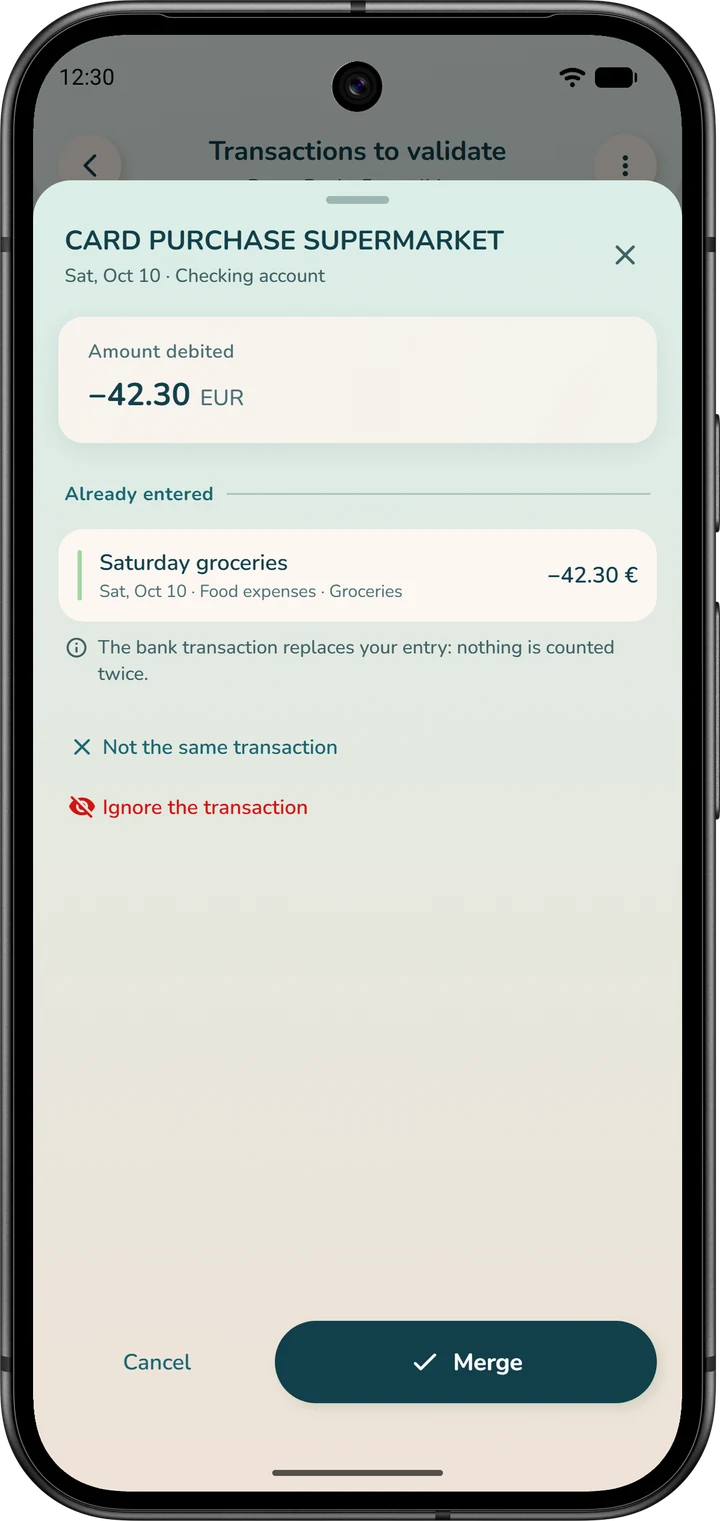
If it matches an entry you already made, by hand or planned in advance, the app spots it on its own and shows it under “Already entered”. Tap “Merge”: the bank's transaction replaces your entry, with no duplicate. Otherwise, tap “Not the same transaction”.
If it matches one of your “My Finances” rules (rent, subscription, salary), the app links it to the matching payment and tells you: “Linked to your … payment: it is not counted twice.” Tap “Not recurring” if the match is wrong.
To link a transaction yourself, at the very bottom of its detail sheet:
- “Link to an existing entry”, for an entry you've already made;
- “Link to a recurring payment”, for rent, a salary or benefits that you've scheduled in “My Finances”;
- “Link to a debt”, for the repayment of a loan.
A scheduled rent or salary is already recorded by the app itself: the transaction coming from the bank must not be added on top. The link avoids this double count.
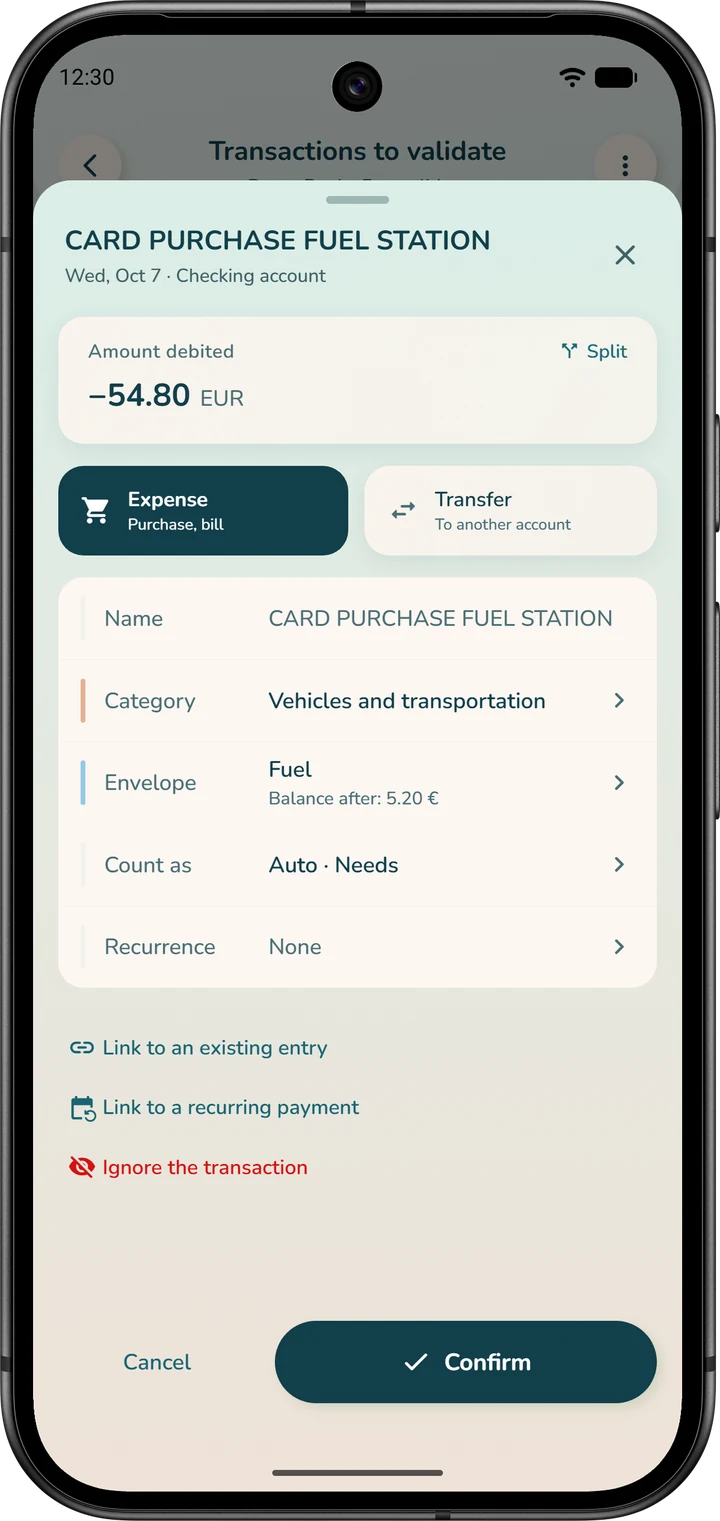
To charge the transaction to an envelope, tap the “Envelope” line of its detail sheet and choose the envelope: under its name, the “Balance after” shows you what it will have left. “No envelope” removes the envelope from the transaction.
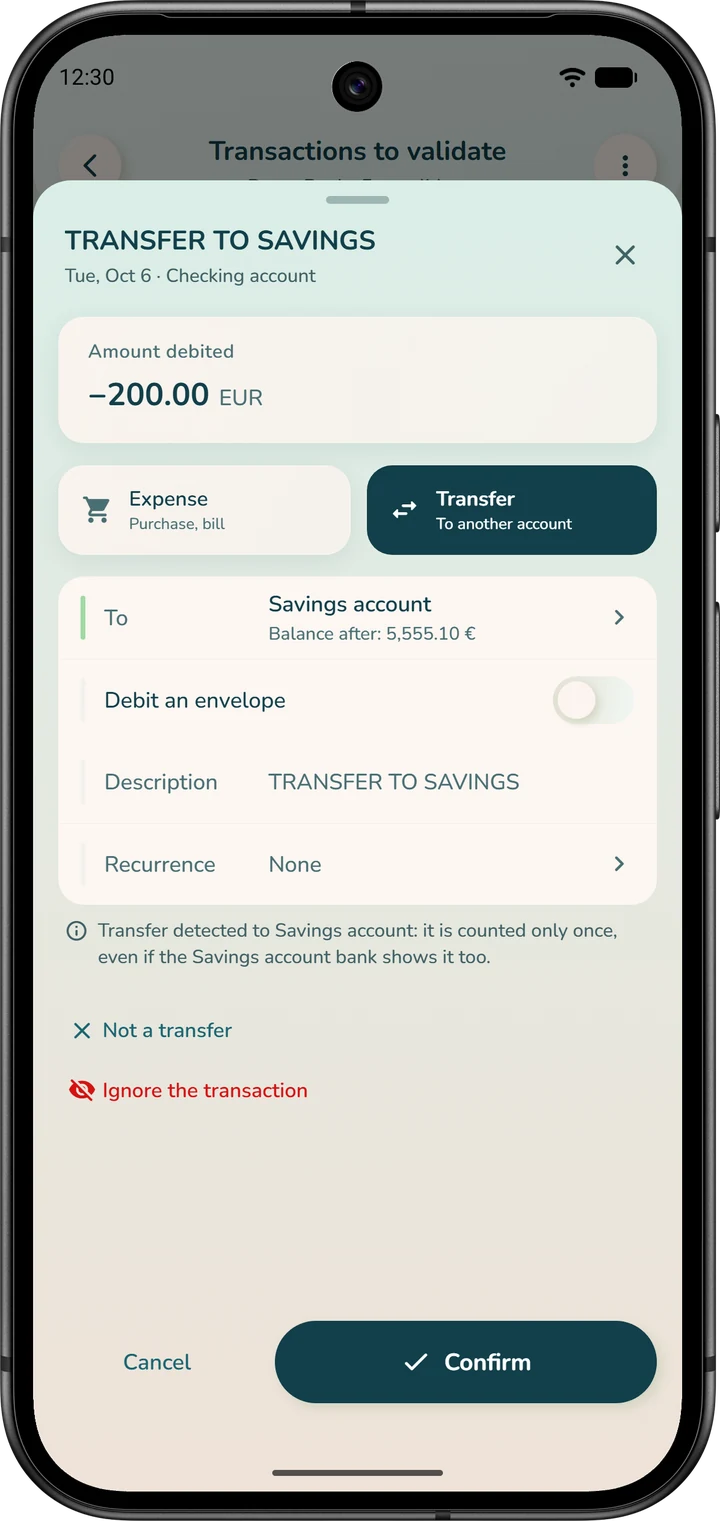
A transfer between your own accounts is neither an expense nor income. At the top of the detail sheet, choose “Transfer”, then tap “To” (or “From”, for money coming in): the list offers your other accounts, and “External account” if the other side isn't in the app (“Recorded as an expense or income”). “Confirm” then records the transfer on both sides.
If the other account is also connected to your bank, the same transaction may arrive in its own list: merge it with the transfer already recorded so you don't count it twice. If it wasn't a transfer, tap “Not a transfer”.
The account on the other side doesn't exist yet? Close the sheet, create it from “Accounts” (⋮ menu, “Create an account”), then reopen the transaction.
To ignore a transaction that doesn't concern your budget, open the ⋮ menu of its card, tap “Ignore”, then confirm. The “Ignore the transaction” button, at the bottom of its detail sheet, does the same. “Ignore all”, in the page's ⋮ menu, is only for dismissing in one go what doesn't concern your budget.
A transaction ignored by mistake isn't lost. In the page's ⋮ menu, open “Recently processed” and tap “Reopen”: it comes back to the list. This page keeps the last 30 processed transactions.
Reopening an already validated transaction doesn't undo what was recorded.
Reading your forecasts
Several figures talk about the end of the period, and they don't all answer the same question.
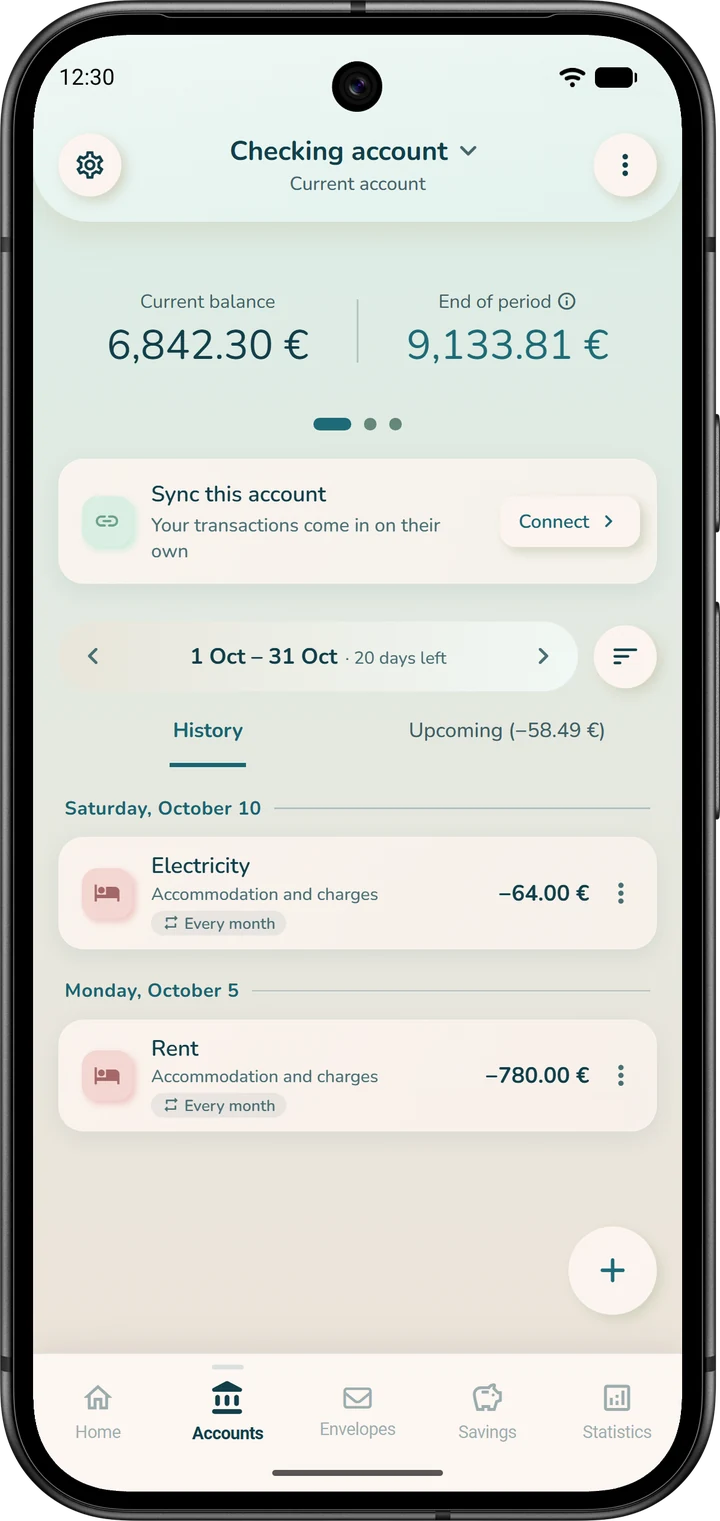
On your account's page, next to “Current balance”, “End of period” projects your bank balance. It takes today's balance, adds the “Expected income” and subtracts the “Expected outflows” over the period: your scheduled fixed expenses and expenses you've already entered with a future date. Tap the ⓘ for the breakdown.
Envelopes aren't deducted there, and that's intentional: an envelope's money stays in your account until it's spent. This figure answers the question: how much will I have in my account at the end of the period?
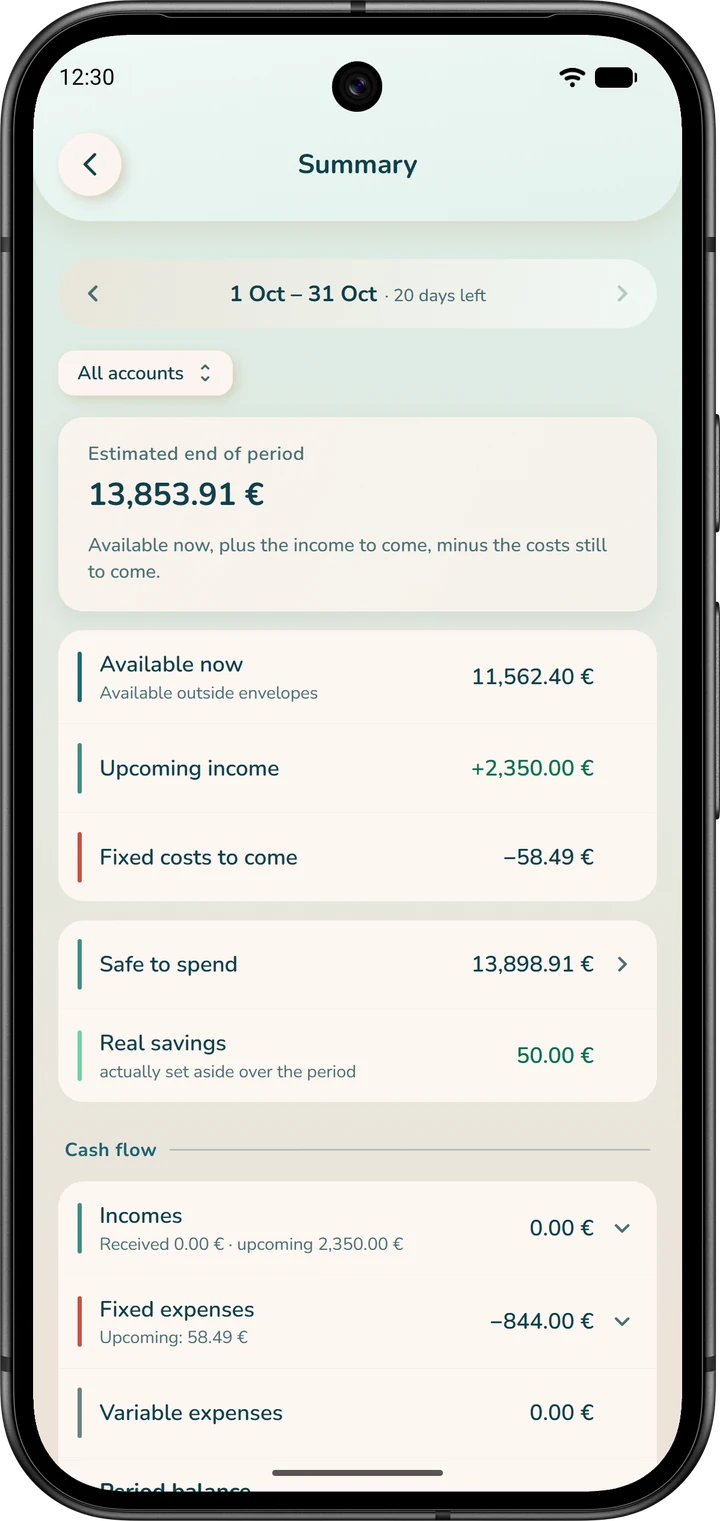
In the “Envelopes” tab, in “My Budget” and in the “Summary”, the projection starts from the money that's truly unassigned: the account balance minus what's already in your envelopes. There, envelopes are deducted.
In the “Envelopes” tab, tap the ⓘ in the header; in “My Budget”, the round ⓘ of an account. The “Available balance details” sheet ends with “Projected end-of-period balance”. The “Summary”, a home screen shortcut, follows the same logic, under the name “Estimated end of period”.
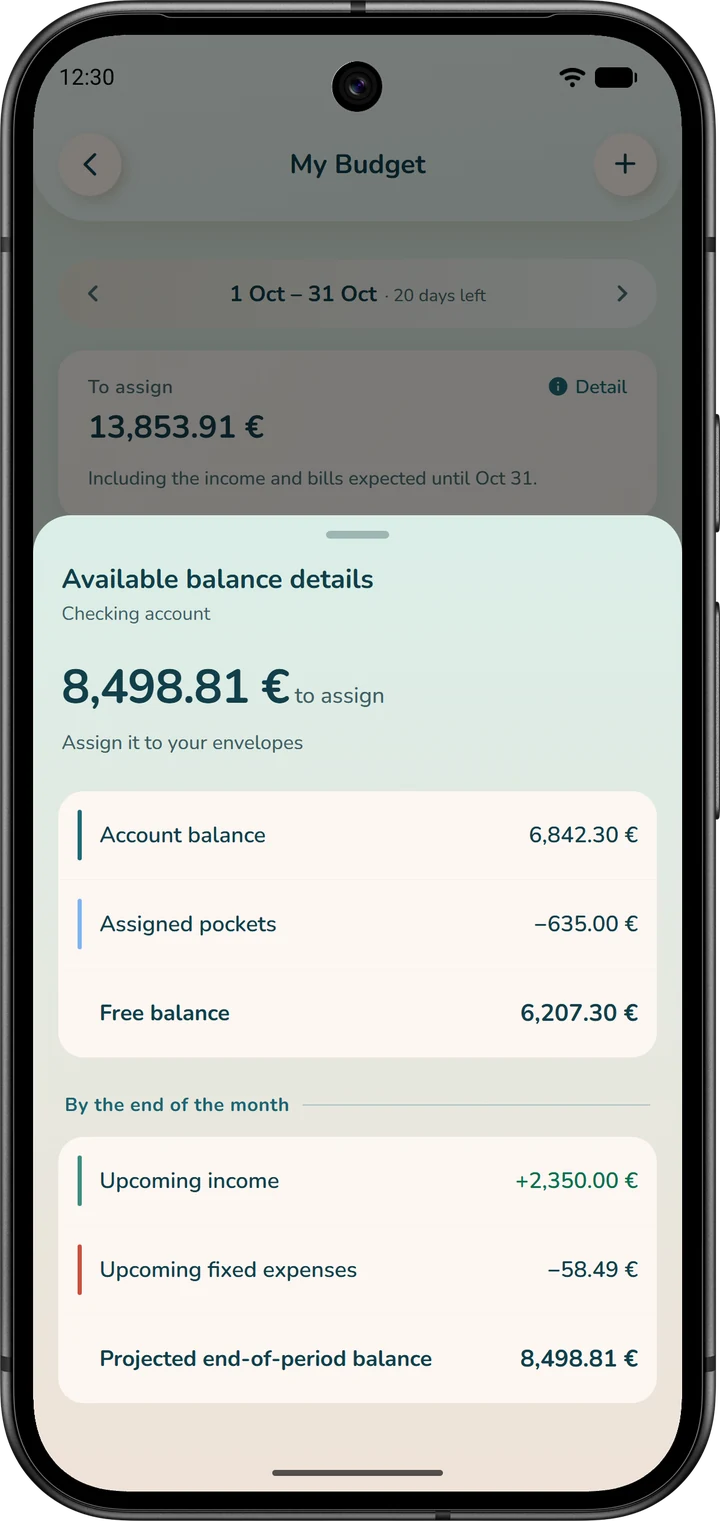
The “Upcoming fixed expenses” line only counts what's still due before the end of the period shown at the top of “My Budget”. When you open it, check this period and switch to the current period with the arrow if needed.
In “Global budget” mode, “My Budget” has no period or projected balance: the “Summary” remains available.
Pitfalls to avoid
- “Ignore all” empties the list without recording anything. Keep it for what doesn't concern your budget: an ignored transaction isn't counted anywhere. The latest ones can be reopened from “Recently processed”.
- Variable expenses set up as recurring rules. Groceries, fuel and entertainment don't have a fixed amount or date: give them an envelope.
- An “Initial balance” left at zero. Enter your bank's real balance, or all your numbers will be off.
- A scheduled expense entered again by hand. It would be counted twice.
- A transfer between your own accounts entered as both an expense and income. Use the round “Transfers” button on the home screen, or “Transfer” in the detail sheet of a bank transaction.
- Automatic savings larger than what you have left each month. The pill in the “Envelopes” tab changes to “… short”: reduce the amount.
Frequently asked questions
Do I have to enter every payment by hand?
Do I need an envelope for every expense?
What should I do with an annual or quarterly bill?
What's the difference between “Initial amount” and “Automatic savings”?
Why two different figures at the end of the period?
What if I don't open the app on the day a payment is due?
How do I change my budget mode?
How do I delete an envelope?
Does the app make my bank transfers?
Going further
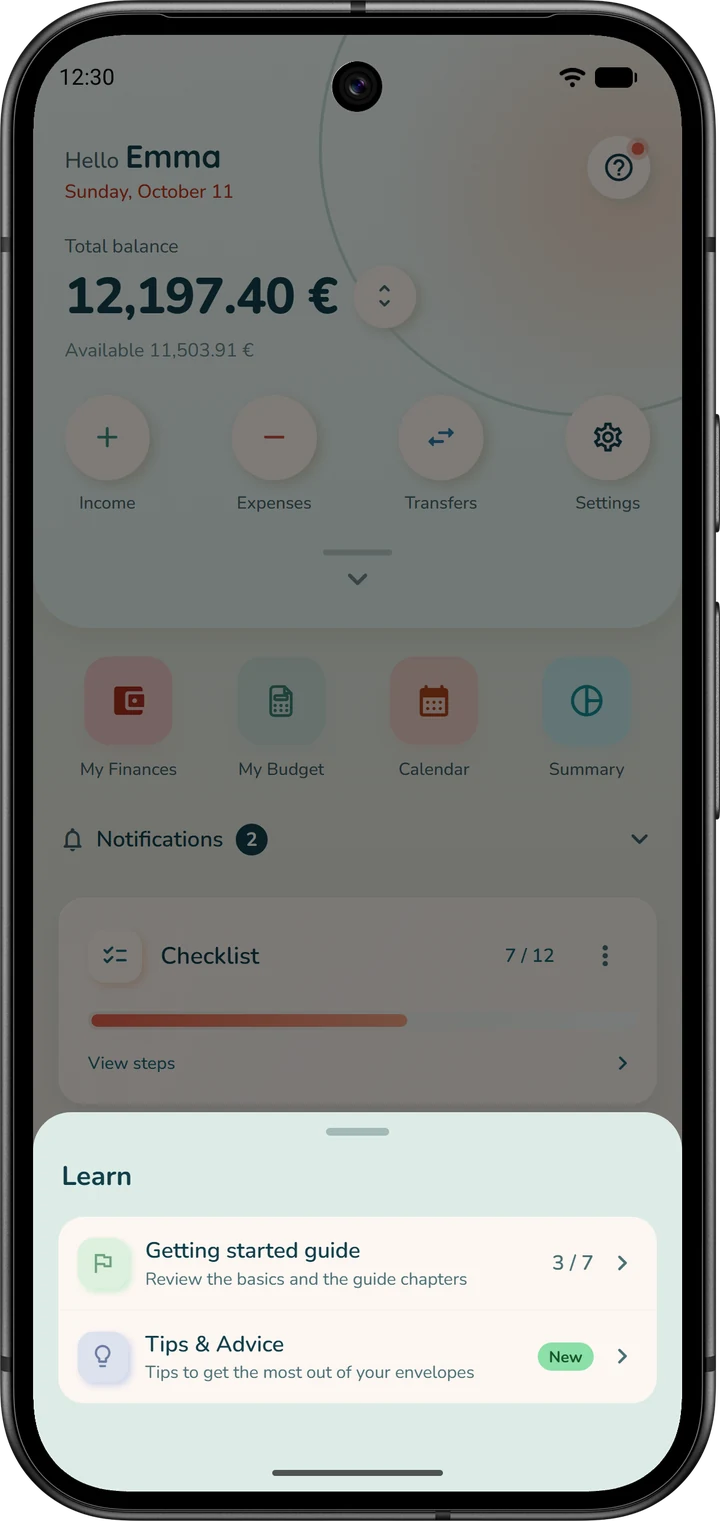
- The getting-started guide, chapter by chapter. Tap the round ? button at the top of the home screen, then “Getting started guide”. You'll also find “Tips & Advice” there. The guide is also in “Settings”, “Help” section.
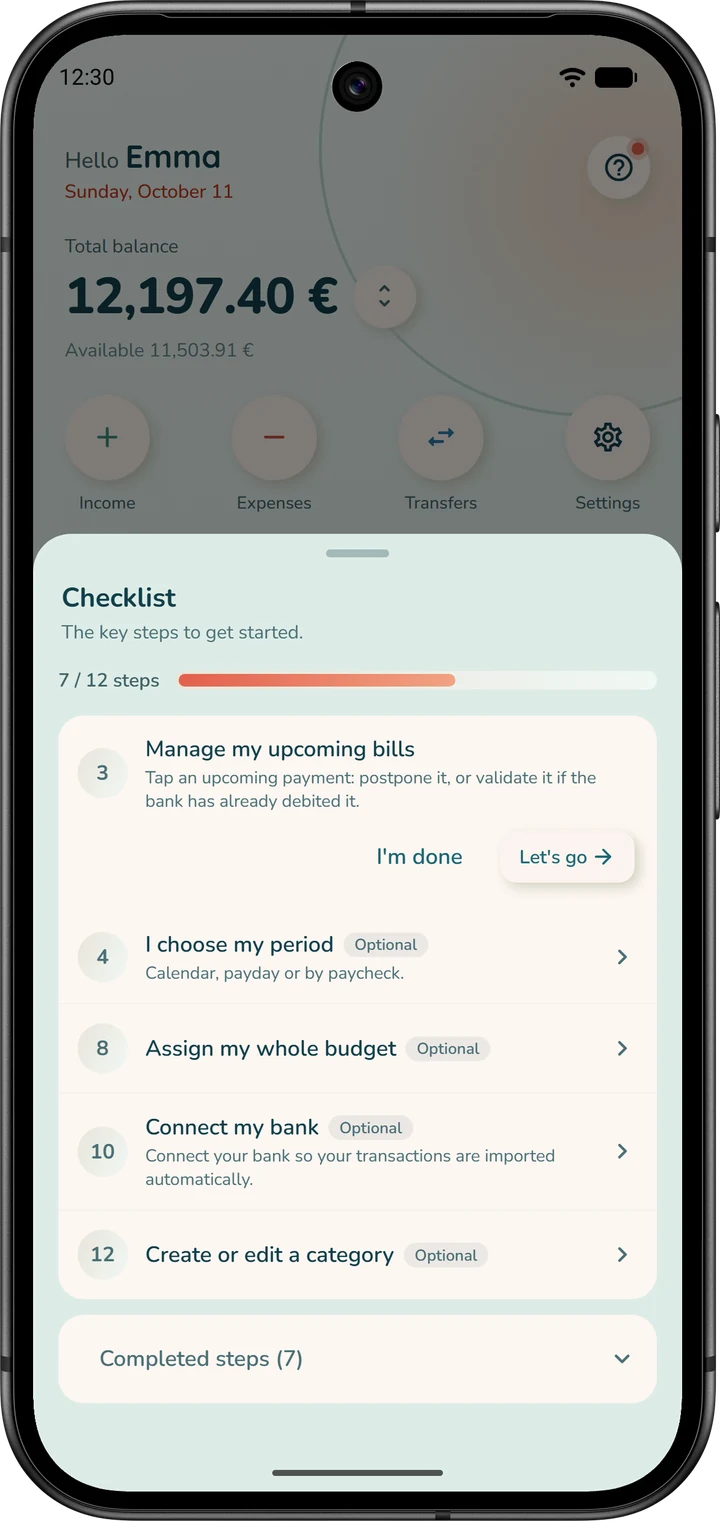
- The “Checklist” card on the home screen walks you through the app to get off to a good start. Tap “View steps”, then “Let's go” to be taken to the right place, or “I'm done”. It disappears on its own once the required steps are done, and its ⋮ menu offers “Hide this card”.
- A goal. The “My goal” area of the home screen tracks the goals you chose in the wizard. Its “Customize” button opens “Customize home”, where you change your goal and choose your cards.
Taking back control of your money doesn't mean depriving yourself. It means deciding, with your eyes open, what you do with it.
Start your first envelope budget
Physical and virtual envelopes, 36 languages. 32-day trial with no card.